
In my previous posts, I talked about building the virtual machine and then about prepping the disks. That's all done for this particular step.
This is a long set of scripts. Here's the list of what we'll be doing:
- Variable Declaration
- Installing Windows Features
- Enabling Disk Performance Metrics
- Installing some Utilities
- Copying the IIS Folders to a new Location
- Enable Deduplication (optional)
- Removing unnecessary IIS Websites and Application Pools
- Tweaking the IIS Settings
- Tweaking the ASP.NET Settings
- Creating a location for the TFTP and SFTP Roots (for NCM)
- Configuring Folder Redirection
- Pre-installing ODBC Drivers (for SAM Templates)
Stage 1: Variable Declaration
This is super simple (as variable declarations should be)
#region Variable Declaration$PageFileDrive = "D:\"$ProgramsDrive = "E:\"$WebDrive = "F:\"$LogDrive = "G:\"#endregion
Stage 2: Installing Windows Features
This is the longest part of the process.. and it can't be helped. The Orion installer will do this for you automatically, but if I do it in advance, I can play with some of the settings before I actual perform the installation.
#region Add Necessary Windows Features# this is a list of the Windows Features that we'll need# it's being filtered for those which are not already installed$Features = Get-WindowsFeature -Name FileAndStorage-Services, File-Services, FS-FileServer, Storage-Services, Web-Server, Web-WebServer, Web-Common-Http, Web-Default-Doc, Web-Dir-Browsing, Web-Http-Errors, Web-Static-Content, Web-Health, Web-Http-Logging, Web-Log-Libraries, Web-Request-Monitor, Web-Performance, Web-Stat-Compression, Web-Dyn-Compression, Web-Security, Web-Filtering, Web-Windows-Auth, Web-App-Dev, Web-Net-Ext, Web-Net-Ext45, Web-Asp-Net, Web-Asp-Net45, Web-ISAPI-Ext, Web-ISAPI-Filter, Web-Mgmt-Tools, Web-Mgmt-Console, Web-Mgmt-Compat, Web-Metabase, NET-Framework-Features, NET-Framework-Core, NET-Framework-45-Features, NET-Framework-45-Core, NET-Framework-45-ASPNET, NET-WCF-Services45, NET-WCF-HTTP-Activation45, NET-WCF-MSMQ-Activation45, NET-WCF-Pipe-Activation45, NET-WCF-TCP-Activation45, NET-WCF-TCP-PortSharing45, MSMQ, MSMQ-Services, MSMQ-Server, FS-SMB1, User-Interfaces-Infra, Server-Gui-Mgmt-Infra, Server-Gui-Shell, PowerShellRoot, PowerShell, PowerShell-V2, PowerShell-ISE, WAS, WAS-Process-Model, WAS-Config-APIs, WoW64-Support, FS-Data-Deduplication | Where-Object { -not $_.Installed }$Features | Add-WindowsFeature#endregionWithout the comments, this is 2 lines. Yes, only 2 lines, but very important ones. The very last Windows Feature that I install is Data Deduplication (FS-Data-Deduplication). If you don't want this, you are free to remove this from the list and skip Stage 6.
Stage 3: Enabling Disk Performance Metrics
This is something that is disabled in Windows Server by default, but I like to see them, so I re-enable them. It's super-simple.
#region Enable Disk Performance Counters in Task ManagerStart-Process -FilePath "C:\Windows\System32\diskperf.exe" -ArgumentList "-Y" -Wait#endregion
Stage 4: Installing some Utilities
This is entirely for me. There are a few utilities that I like on every server that I use regardless of version. You can configure this to do it in whatever way you like. Note that I no longer install 7-zip as part of this script because I'm deploying it via Group Policy.
#region Install 7Zip
# This can now be skipped because I'm deploying this via Group Policy
# Start-Process -FilePath "C:\Windows\System32\msiexec.exe" -ArgumentList "/i", "\\Path\To\Installer\7z1604-x64.msi", "/passive" -Wait
#endregion#region Install Notepad++
# Install NotePad++ (current version)
# Still need to install the Plugins manually at this point, but this is a start
Start-Process -FilePath "\\Path\To\Installer\npp.latest.Installer.exe" -ArgumentList "/S" -Wait
#endregion#region Setup UTILS Folder
# This contains the SysInternals and Unix Utils that I love so much.
$RemotePath = "\\Path\To\UTILS\"
$LocalPath  = "C:\UTILS\"
Start-Process -FilePath "C:\Windows\System32\robocopy.exe" -ArgumentList $RemotePath, $LocalPath, "/E", "/R:3", "/W:5", "/MT:16" -Wait$MachinePathVariable = [Environment]::GetEnvironmentVariable("Path", "Machine")
if ( -not ( $MachinePathVariable -like '*$( $LocalPath )*' ) )
{
    $MachinePathVariable += ";$LocalPath;"
    $MachinePathVariable = $MachinePathVariable.Replace(";;", ";")
    Write-Host "Adding C:\UTILS to the Machine Path Variable" -ForegroundColor Yellow
    Write-Host "You must close and reopen any command prompt windows to have access to the new path"
    [Environment]::SetEnvironmentVariable("Path", $MachinePathVariable, "Machine")
}
else
{
    Write-Host "[$( $LocalPath )] already contained in machine environment variable 'Path'"
}
#endregion
Stage 5: Copying the IIS folders to a New Location
I don't want my web files on the C:\ Drive. It's just something that I've gotten in the habit of doing from years of IT, so I move them using robocopy. Then I need to re-apply some permissions that are stripped.
#region Copy the IIS Root to the Web Drive
# I can do this with Copy-Item, but I find that robocopy works better at keeping permissions
Start-Process -FilePath "robocopy.exe" -ArgumentList "C:\inetpub", ( Join-Path -Path $WebDrive -ChildPath "inetpub" ), "/E", "/R:3", "/W:5" -Wait
#endregion#region Fix IIS temp permissions
$FolderPath = Join-Path -Path $WebDrive -ChildPath "inetpub\temp"
$CurrentACL = Get-Acl -Path $FolderPath
$AccessRule = New-Object -TypeName System.Security.AccessControl.FileSystemAccessRule -ArgumentList "NT AUTHORITY\NETWORK SERVICE", "FullControl", ( "ContainerInherit", "ObjectInherit" ), "None", "Allow"
$CurrentACL.SetAccessRule($AccessRule)
$CurrentACL | Set-Acl -Path $FolderPath
#endregion
Stage 6: Enable Deduplication (Optional)
I only want to deduplicate the log drive - I do this via this script.
#region Enable Deduplication on the Log DriveEnable-DedupVolume -Volume ( $LogDrive.Replace("\", "") )Set-DedupVolume -Volume ( $LogDrive.Replace("\", "") ) -MinimumFileAgeDays 0 -OptimizeInUseFiles -OptimizePartialFiles#endregionStage 7: Remove Unnecessary IIS Websites and Application Pools
Orion will create its own website and application pool, so I don't need the default ones. I destroy them with PowerShell.
#region Delete Unnecessary Web StuffGet-WebSite -Name "Default Web Site" | Remove-WebSite -Confirm:$falseRemove-WebAppPool -Name ".NET v2.0" -Confirm:$falseRemove-WebAppPool -Name ".NET v2.0 Classic" -Confirm:$falseRemove-WebAppPool -Name ".NET v4.5" -Confirm:$falseRemove-WebAppPool -Name ".NET v4.5 Classic" -Confirm:$falseRemove-WebAppPool -Name "Classic .NET AppPool" -Confirm:$falseRemove-WebAppPool -Name "DefaultAppPool" -Confirm:$false#endregion
Step 8: Tweak the IIS Settings
This step is dangerous. There's no other way to say this. If you get the syntax wrong you can really screw up your system... this is also why I save a backup of the file before I make and changes.
#region Change IIS Application Host Settings
# XML Object that will be used for processing
$ConfigFile = New-Object -TypeName System.Xml.XmlDocument# Change the Application Host settings
$ConfigFilePath = "C:\Windows\System32\inetsrv\config\applicationHost.config"# Load the Configuration File
$ConfigFile.Load($ConfigFilePath)
# Save a backup if one doesn't already exist
if ( -not ( Test-Path -Path "$ConfigFilePath.orig" -ErrorAction SilentlyContinue ) )
{
    Write-Host "Making Backup of $ConfigFilePath with '.orig' extension added" -ForegroundColor Yellow
    $ConfigFile.Save("$ConfigFilePath.orig")
}
# change the settings (create if missing, update if existing)
$ConfigFile.configuration.'system.applicationHost'.log.centralBinaryLogFile.SetAttribute("directory", [string]( Join-Path -Path $LogDrive -ChildPath "inetpub\logs\LogFiles" ) )
$ConfigFile.configuration.'system.applicationHost'.log.centralW3CLogFile.SetAttribute("directory", [string]( Join-Path -Path $LogDrive -ChildPath "inetpub\logs\LogFiles" ) )
$ConfigFile.configuration.'system.applicationHost'.sites.siteDefaults.logfile.SetAttribute("directory", [string]( Join-Path -Path $LogDrive -ChildPath "inetpub\logs\LogFiles" ) )
$ConfigFile.configuration.'system.applicationHost'.sites.siteDefaults.logfile.SetAttribute("logFormat", "W3C" )
$ConfigFile.configuration.'system.applicationHost'.sites.siteDefaults.logfile.SetAttribute("logExtFileFlags", "Date, Time, ClientIP, UserName, SiteName, ComputerName, ServerIP, Method, UriStem, UriQuery, HttpStatus, Win32Status, BytesSent, BytesRecv, TimeTaken, ServerPort, UserAgent, Cookie, Referer, ProtocolVersion, Host, HttpSubStatus" )
$ConfigFile.configuration.'system.applicationHost'.sites.siteDefaults.logfile.SetAttribute("period", "Hourly")
$ConfigFile.configuration.'system.applicationHost'.sites.siteDefaults.traceFailedRequestsLogging.SetAttribute("directory", [string]( Join-Path -Path $LogDrive -ChildPath "inetpub\logs\FailedReqLogFiles" ) )
$ConfigFile.configuration.'system.webServer'.httpCompression.SetAttribute("directory", [string]( Join-Path -Path $WebDrive -ChildPath "inetpub\temp\IIS Temporary Compressed File" ) )
$ConfigFile.configuration.'system.webServer'.httpCompression.SetAttribute("maxDiskSpaceUsage", "2048" )
$ConfigFile.configuration.'system.webServer'.httpCompression.SetAttribute("minFileSizeForComp", "5120" )
# Save the file
$ConfigFile.Save($ConfigFilePath)
Remove-Variable -Name ConfigFile -ErrorAction SilentlyContinue
#endregion
There's a lot going on here, so let me see if I can't explain it a little.
I'm accessing the IIS Application Host configuration file and making changes. This file governs the entire IIS install, which is why I make a backup.
The changes are:
- Change any log file location (lines 15 - 17, 21)
- Define the log type (line 18)
- Set the elements that I want in the logs (line 19)
- Set the log roll-over period to hourly (line 20)
- Set the location for temporary compressed files (line 22)
- Set my compression settings (lines 23-24)
Stage 9: Tweaking the ASP.NET Configuration Settings
We're working with XML again, but this time it's for the ASP.NET configuration. I use the same process as Stage 8, but the changes are different. I take a backup again.
#region Change the ASP.NET Compilation Settings
# XML Object that will be used for processing
$ConfigFile = New-Object -TypeName System.Xml.XmlDocument# Change the Compilation settings in the ASP.NET Web Config
$ConfigFilePath = "C:\Windows\Microsoft.NET\Framework\v4.0.30319\Config\web.config"
Write-Host "Editing [$ConfigFilePath]" -ForegroundColor Yellow
# Load the Configuration File
$ConfigFile.Load($ConfigFilePath)
# Save a backup if one doesn't already exist
if ( -not ( Test-Path -Path "$ConfigFilePath.orig" -ErrorAction SilentlyContinue ) )
{
    Write-Host "Making Backup of $ConfigFilePath with '.orig' extension added" -ForegroundColor Yellow
    $ConfigFile.Save("$ConfigFilePath.orig")
}
# change the settings (create if missing, update if existing)
$ConfigFile.configuration.'system.web'.compilation.SetAttribute("tempDirectory", [string]( Join-Path -Path $WebDrive -ChildPath "inetpub\temp") )
$ConfigFile.configuration.'system.web'.compilation.SetAttribute("maxConcurrentCompilations", "16")
$ConfigFile.configuration.'system.web'.compilation.SetAttribute("optimizeCompilations", "true")# Save the fileWrite-Host "Saving [$ConfigFilePath]" -ForegroundColor Yellow
$ConfigFile.Save($ConfigFilePath)
Remove-Variable -Name ConfigFile -ErrorAction SilentlyContinue
#endregion
Again, there's a bunch going on here, but the big takeaway is that I'm changing the temporary location of the ASP.NET compilations to the drive where the rest of my web stuff lives and the number of simultaneous compilations. (lines 16-18)
Stage 10: Create NCM Roots
I hate having uploaded configuration files (from network devices) saved to the root drive. This short script creates folders for them.
#region Create SFTP and TFTP Roots on the Web Drive# Check for & Configure SFTP and TFTP Roots$Roots = "SFTP_Root", "TFTP_Root"ForEach ( $Root in $Roots ){ if ( -not ( Test-Path -Path ( Join-Path -Path $WebDrive -ChildPath $Root ) ) ) { New-Item -Path ( Join-Path -Path $WebDrive -ChildPath $Root ) -ItemType Directory }}#endregionStage 11: Configure Folder Redirection
This is the weirdest thing that I do. Let me see if I can explain.
My ultimate goal is to automate installation of the software itself. The default directory for installation the software is C:\Program Files (x86)\SolarWinds\Orion (and a few others). Since I don't really like installing any program (SolarWinds stuff included) on the O/S drive, this leaves me in a quandary. I thought to myself, "Self, if this was running on *NIX, you could just do a symbolic link and be good." Then I reminded myself, "Self, Windows has symbolic links available." Then I just needed to tinker until I got things right. After much annoyance, and rolling back to snapshots, this is what I got.
#region Folder Redirection
$Redirections = @()
$Redirections += New-Object -TypeName PSObject -Property ( [ordered]@{ Order = [int]1; SourcePath = "C:\ProgramData\SolarWinds"; TargetDrive = $ProgramsDrive } )
$Redirections += New-Object -TypeName PSObject -Property ( [ordered]@{ Order = [int]2; SourcePath = "C:\ProgramData\SolarWindsAgentInstall"; TargetDrive = $ProgramsDrive } )
$Redirections += New-Object -TypeName PSObject -Property ( [ordered]@{ Order = [int]3; SourcePath = "C:\Program Files (x86)\SolarWinds"; TargetDrive = $ProgramsDrive } )
$Redirections += New-Object -TypeName PSObject -Property ( [ordered]@{ Order = [int]4; SourcePath = "C:\Program Files (x86)\Common Files\SolarWinds"; TargetDrive = $ProgramsDrive } )
$Redirections += New-Object -TypeName PSObject -Property ( [ordered]@{ Order = [int]5; SourcePath = "C:\ProgramData\SolarWinds\Logs"; TargetDrive = $LogDrive } )
$Redirections += New-Object -TypeName PSObject -Property ( [ordered]@{ Order = [int]6; SourcePath = "C:\inetput\SolarWinds"; TargetDrive = $WebDrive } )
$Redirections | Add-Member -MemberType ScriptProperty -Name TargetPath -Value { $this.SourcePath.Replace("C:\", $this.TargetDrive ) } -ForceForEach ( $Redirection in $Redirections | Sort-Object -Property Order )
{
    # Check to see if the target path exists - if not, create the target path
    if ( -not ( Test-Path -Path $Redirection.TargetPath -ErrorAction SilentlyContinue ) )
    {
        Write-Host "Creating Path for Redirection [$( $Redirection.TargetPath )]" -ForegroundColor Yellow
        New-Item -ItemType Directory -Path $Redirection.TargetPath | Out-Null
    }
    # Build the string to send to the command prompt
    $CommandString = "mklink /D /J `"$( $Redirection.SourcePath )`" `"$( $Redirection.TargetPath )`""
    Write-Host "Executing [$CommandString]... " -ForegroundColor Yellow -NoNewline
    # Execute it
    Start-Process -FilePath "cmd.exe" -ArgumentList "/C", $CommandString -Wait
    Write-Host "[COMPLETED]" -ForegroundColor Green
}
#endregion
The reason for the "Order" member in the Redirections object is because certain folders have to be built before others... IE: I can't build X:\ProgramData\SolarWinds\Logs before I build X:\ProgramData\SolarWinds.
When complete the folders look like this:
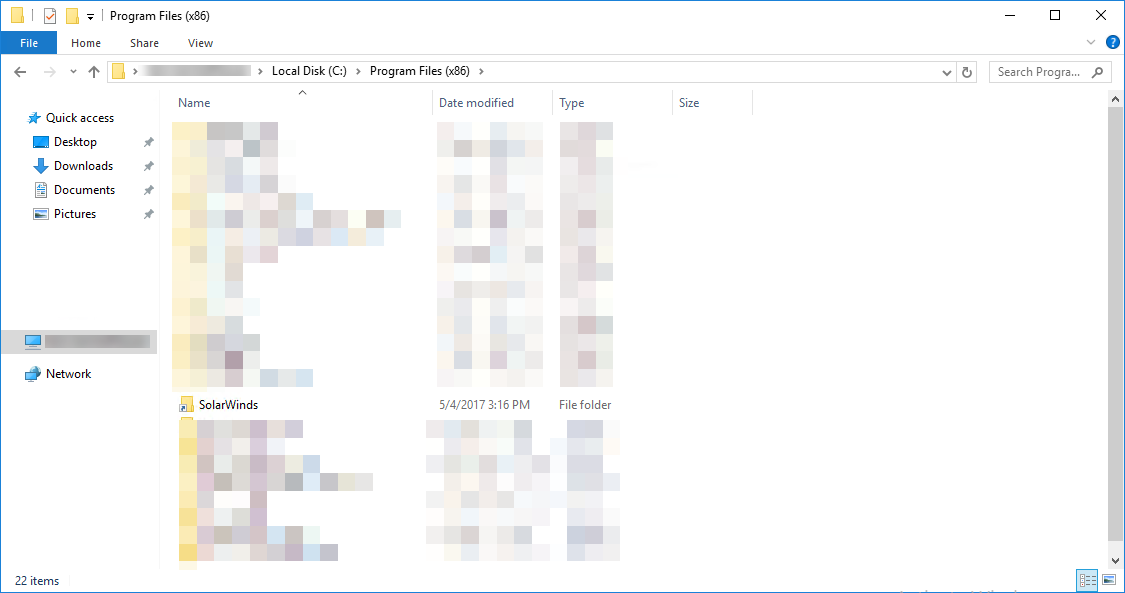
Nice, right?
Stage 12: Pre-installing ODBC Drivers
I monitor many database server types with SolarWinds Server & Application Monitor. They each require drivers - I install them in advance (because I can).
#region Pre-Orion Install ODBC Drivers## This is for any ODBC Drivers that I want to install to use with SAM# You don't need to include any driver for Microsoft SQL Server - it will be done by the installer# I have the drivers for MySQL and PostgreSQL in this share## There is also a Post- share which includes the files that I want to install AFTER I install Orion.$Drivers = Get-ChildItem -Path "\\Path\To\ODBC\Drivers\Pre\" -FileForEach ( $Driver in $Drivers ){ if ( $Driver.Extension -eq ".exe" ) { Write-Host "Executing $( $Driver.FullName )... " -ForegroundColor Yellow -NoNewline Start-Process -FilePath $Driver.FullName -Wait Write-Host "[COMPLETED]" -ForegroundColor Green } elseif ( $Driver.Extension -eq ".msi" ) { # Install it using msiexec.exe Write-Host "Installing $( $Driver.FullName )... " -ForegroundColor Yellow -NoNewline Start-Process -FilePath "C:\Windows\System32\msiexec.exe" -ArgumentList "/i", "`"$( $Driver.FullName )`"", "/passive" -Wait Write-Host "[COMPLETED]" -ForegroundColor Green } else { Write-Host "Bork-Bork-Bork on $( $Driver.FullName )" }}#endregionRunning all of these with administrator privileges cuts this process down to 2 minutes and 13 seconds. And over 77% of that is installing the Windows Features.
Execution time: 2:13
Time saved: over 45 minutes
This was originally published on my personal blog as Building my Orion Server [Scripting Edition] – Step 3 – Kevin's Ramblings