On a previous post I showed off a little PowerShell script that I've written to build my SolarWinds Orion Servers. That post left us with a freshly imaged Windows Server. Like I said before, you can install the O/S however you like. I used Windows Deployment Services because I'm comfortable with it.
I used Windows Server 2016 because this is my lab and...

Now I've got a list of things that I want to do to this machine.
- Bring the Disks Online & Initialize
- Format Disks & Disable Indexing
- Configure the Page File
- Import the Certificate for SSL (Optional)
Because I'm me, I do this with PowerShell. I'm going to go through each of stage one by one.
Stage 0: Declare Variables
I don't list this because this is something that I have in every script. Before I even get into this, I need to define my variables. For this it's disk names and drive letters.
#region Build Disk List$DiskInfo = @()$DiskInfo += New-Object -TypeName PSObject -Property ( [ordered]@{ DiskNumber = [int]1; DriveLetter = "D"; Label = "Page File" } )$DiskInfo += New-Object -TypeName PSObject -Property ( [ordered]@{ DiskNumber = [int]2; DriveLetter = "E"; Label = "Programs" } )$DiskInfo += New-Object -TypeName PSObject -Property ( [ordered]@{ DiskNumber = [int]3; DriveLetter = "F"; Label = "Web" } )$DiskInfo += New-Object -TypeName PSObject -Property ( [ordered]@{ DiskNumber = [int]4; DriveLetter = "G"; Label = "Logs" } )#endregionThis looks simple, because it is. It's simply a list of the disk numbers, the drive letter, and the labels that I want to use for the additional drives.
Stage 1: Bring the Disks Online & Initialize
Since I need to bring all offline disks online and choose a partition type (GPT), I can do this all at once.
#region Online & Enable RAW disksGet-Disk | Where-Object { $_.OperationalStatus -eq "Offline" } | Set-Disk -IsOffline:$falseGet-Disk | Where-Object { $_.PartitionStyle -eq "RAW" } | ForEach-Object { Initialize-Disk -Number $_.Number -PartitionStyle GPT }#endregionStage 2: Format Disks & Disable Indexing
This is where I really use the variables that are declared in Stage 0. I do this with a ForEach Loop.
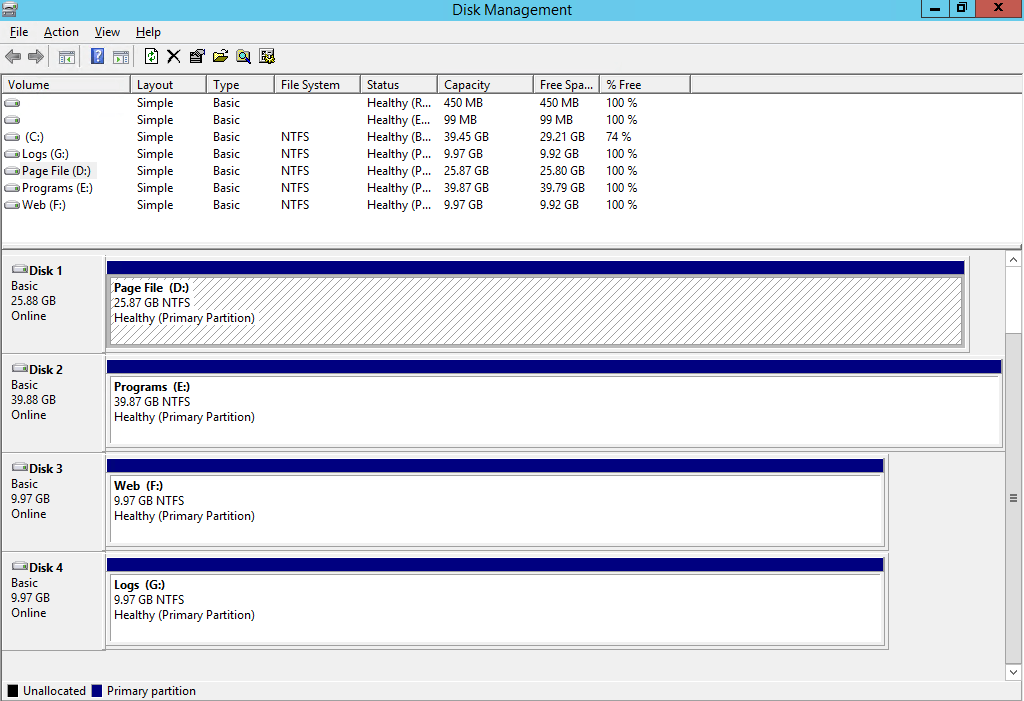
#region Create Partitions & Format$FullFormat = $false # indicates a "quick" formatForEach ( $Disk in $DiskInfo ){ # Create Partition and then Format it New-Partition -DiskNumber $Disk.DiskNumber -UseMaximumSize -DriveLetter $Disk.DriveLetter | Out-Null Format-Volume -DriveLetter $Disk.DriveLetter -FileSystem NTFS -AllocationUnitSize 64KB -Force -Confirm:$false -Full:$FullFormat -NewFileSystemLabel $Disk.Label # Disable Indexing via WMI $WmiVolume = Get-WmiObject -Query "SELECT * FROM Win32_Volume WHERE DriveLetter = '$( $Disk.DriveLetter ):'" $WmiVolume.IndexingEnabled = $false $WmiVolume.Put()}#endregionWe're getting closer! Now we've got this:
Stage 3: Configure the Page File
Getting the "best practices" for page files are crazy and all over the board. Are you using flash storage? Do you keep it on the O/S disk? Do you declare a fixed size? I decided to fall back on settings that I've used for years.
Page file does not live on the O/S disk.
Page file is statically set
Page file is RAM size + 257MB
In script form, this looks something like this:
#region Set Page Files
$CompSys = Get-WmiObject -Class Win32_ComputerSystem -EnableAllPrivileges
# is the system set to use system managed page files
if ( $CompSys.AutomaticManagedPagefile )
{
# if so, turn it off
$CompSys.AutomaticManagedPagefile = $false
$CompSys.Put()
}
# Set the size to 16GB + 257MB (per Microsoft Recommendations) and move it to the  \ Drive
# as a safety-net I also keep 8GB on the C:\ Drive.
$PageFileSettings = @()
$PageFileSettings += "c:\pagefile.sys 8192 8192"
$PageFileSettings += "d:\pagefile.sys 16641 16641"Set-ItemProperty -Path "HKLM:\SYSTEM\CurrentControlSet\Control\Session Manager\Memory Management\" -Name "pagingfiles" -Type multistring -Value $PageFileSettings
#endregion
Stage 4: Import the Certificate for SSL (Optional)
Since this is my lab, I get to do what I want. (See above) I include using SSL for Orion. I have a wildcard certificate that I can use within my lab, so if I import it, then I can enable SSL when the configuration wizard runs. This certificate is saved on a DFS share in my lab. This is the script to import it.
#region Import Certificate# Lastly, import my internal PKI Certificate for use with HTTPS$CertName = "WildcardCert_demo.lab"$CertPath = "\\Demo.Lab\Files\Data\Certificates\"$PfxFile = Get-ChildItem -Path $CertPath -Filter "$CertName.pfx"$PfxPass = ConvertTo-SecureString -String ( Get-ChildItem -Path $CertPath -Filter "$CertName.password.txt" | Get-Content -Raw ) -AsPlainText -ForceImport-PfxCertificate -FilePath $PfxFile.FullName -Password $PfxPass#endregion
That's it. Now the disks are setup, the page file is set, and the certificate is installed. Next, I rename the computer, reboot, run Windows Updates, reboot, run Windows Updates, reboot, run Windows Updates... (you see where this is going, right?)
Execution Time: 16 seconds
Time saved: at least 15 minutes.
There's still some prep work I can do via scripting and I'll provide that next.
This is a cross-post from my personal blog post Building my Orion Server [Scripting Edition] – Step 2 – Kevin's Ramblings