Orion seems to be able to read the temperature if the machine supports it, so is it possible to take it one step further and issue a shutdown command when the server reaches a certain threshold?
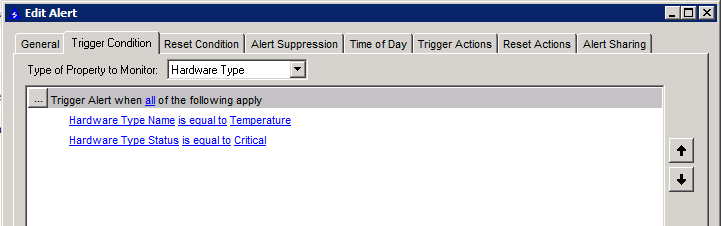
With a little work, it should be possible. You don't mention what the target OS is, so I'm going to assume Windows for now, but if it's another platform, it shouldn't be too hard to figure out what I did, and adjust from there. The way I'd do this is to create an alert in "Advanced Alert Manager", with a trigger condition that looked something like this:
Property to Monitor: Hardware Type
- Hardware Type Name is equal to Temperature
- Hardware Type Status is equal to Critical
You might need to add other conditions, such as getting it to exclude certain hardware depending on known criteria. Once you have identified your criteria, next is the trigger action. Click on the "Add New Action", and select "Execute an external program", this is where you can get it to do all shutdown steps. Because I'm using Windows as an example, I'd use psshutdown to do the work. Assuming I put psshutdown in c:\utils\ then the command would look something like this:
c:\utils\psshutdown -f -k -t 30 -m "Shutdown due to Temperature issues" \\${DNS}
Using psshutdown, you may need to specify credentials, in which case, you'd either adjust the command here, or look into triggering the action some other way.
As a side note, if you want it to react at a certain temperature, rather than the hardware telling you it's at a dangerous temperature, change the property to monitor to Hardware Sensor, remove the "hardware type status" option, and use "Hardware Sensor Value".
I'd strongly recommend using a dummy script for a while instead of the real shut down script, just to verify your alerting criteria are in fact correct, and you don't go shutting down your infrastructure by accident. You should also consider setting it so that the alert trigger doesn't go off until X minutes have passed, this is to avoid fluctuating temperatures or values. You can also use a reset action to stop the shutdown, for example with psshutdown you pass in -a and it'll abort the shutdown.
This is a rough idea, I've not tested it, but should give you some ideas to work from. Have fun! Let me know how it goes.
Additionally, most current hardware vendors that have temperature sensors also have some form of a "service processor" that sits in the background and independently monitors the sensors.
The service processor will have its own thresholds for a temperature alarm ( SNMP trap / Audio Alarm / Log entry / etc).
There are usually warning and critical thresholds that have been preset by the HW vendor before shipping.
When the temperature critical threshold is exceeded, the service processor will perform a HARD shutdown of the system to protect the hardware. Their presumption is by the time the temperature has gone critical, the HW is more important to protect than the SW running on the system.
If you plan to initiate an orderly shutdown, ensure your shutdown thresholds are below the service processor thresholds.
Chris.
Thanks for the response, this looks like it's exactly what I was looking for! I'll play around with various conditions and get it perfected.
The script works great locally, but doesn't want to execute remotely. Any ideas? It doesn't even act like it's trying to do anything on the remote test machine.
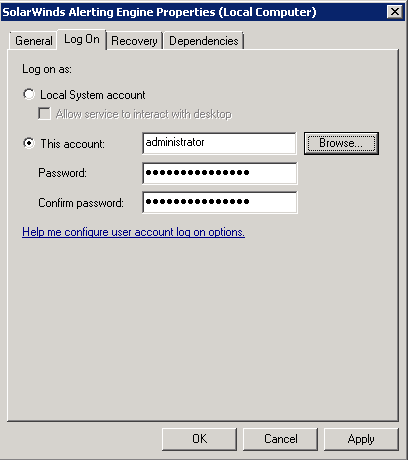
This is likely due to limited permissions the local system account has for accessing network resources. Unfortunately the Advanced Alert Manager does not allow impersonation when executing external programs or scripts. Instead you need to change the user context under which the Advanced Alert Manager runs to a domain account that has permissions to both login locally to the system, as well as access the network resources that the script is dependent upon. Once you've changed the account you will need to restart the SolarWinds Alerting Engine service for the changes to take effect. Then your script should execute normally.
I did this and it appears that the remote machine still does nothing. Where do I start looking to troubleshoot this and see if the script is even being sent to the remote machine?
Are you using psshutdown as I gave in the example above? Does the user you have running the alert manager have admin access on the remote server? It will be needed to access \\servername\admin$\, you should verify that it has access. The other thing you may need to verify is that it is using the right values, instead of executing psshutdown like above, just call a .bat script and write the values to a text file, something like this:
echo %1 >> c:\temp\script_out.txt
Name it c:\util\test.bat, and for your script execution command, do something like this:
c:\util\test.bat ${DNS}
This should log the DNS address into the text file, verify it is what you are expecting it to be.
Check the windows event logs on the remote server, psshutdown installs a service to do the actual shutdown. If psshutdown isn't working for you, you could use the regular shutdown command, or even some powershell.
It's only returning a ${DNS} in the text file. I'm thinking I missed a step.
Depending on what kind of alert this is (node versus UnDP) you may have to give the "fully qualified" field name - ie: ${node.DNS} or even ${nodes.DNS} instead of just ${DNS}. I'm not near a SW installation right now to check the exact field name, but I think that's your issue.
I was going based on this doc (sub section "node variables"), which doesn't reference using ${node.....} Interestingly enough, the examples use variables that are not defined, so it looks like maybe the documentation is out of date. Unfortunately there is no "variable helper" when using the external application function, just the docs.
Seems like if we can find the right variable it might work. nodes.DNS and node.DNS don't return anything either.
This is because the ${DNS} macro isn't available under the Hardware Sensor property category of the Advanced Alert Manager. I suggest using ${NodeName} instead. If you need the fully qualified domain name you could either update the node's caption accordingly, or append the domain name to the macro. E.G. ${NodeName}.mydomain.ext.
Here's how I've got the script in the alert:
c:\utils\psshutdown -f -k -t 30 -u administrator -p xxxxxx \\${NodeName}
I obviously blanked out the password here, but this script works perfectly if I paste it into a command prompt and run it. From the Alert Manager it does nothing. If I do the batch file thing I get an output, so I know the action is running. Is there something wrong with my syntax here that Orion doesn't like?
You should start by browsing for the file you want to execute and then fill in the parameters required. The Advanced Alert Manager may be having a hard time finding "psshutdown" without the ".exe" file extension. That's just a hunch. Also, on the Orion server open task manager and select "Show Processes from all users". Are there any psshutdown.exe processes running? If so, are there multiple?
Yes psshutdown.exe was running somewhere around 12 times. I ended all of them and tried again after using the "Browse" button to search for the target but it still didn't shut down the remote computer.
2 random thoughts, the first is that the service is seeing a box prompting to accept the EULA, the second is that for some reason, the \\ are being escaped, or treated differently. I'd try changing the execution of psshutdown to include the -accepteula argument, like this:
c:\utils\psshutdown.exe -accepteula -f -k -t 30 -u administrator -p xxxxxxx \\${NodeName}
See if that works. You might not be seeing the EULA box because you already accepted it once.
The other might be because the \ character might be being escaped, a quick test to verify this would be to go back to your test bat we created to look at the arguments:
c:\utils\test.bat \\${NodeName}
Then look at your log file, see if it correctly contains both slashes and the host name.