Hi,
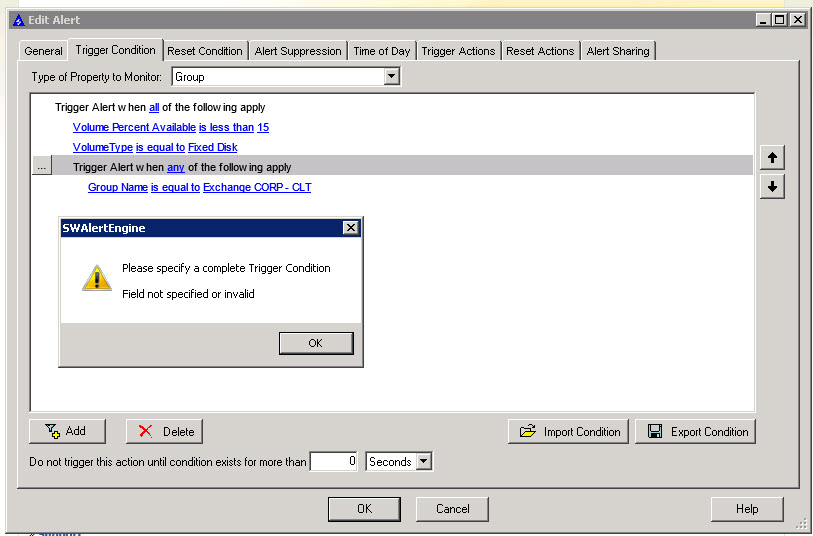
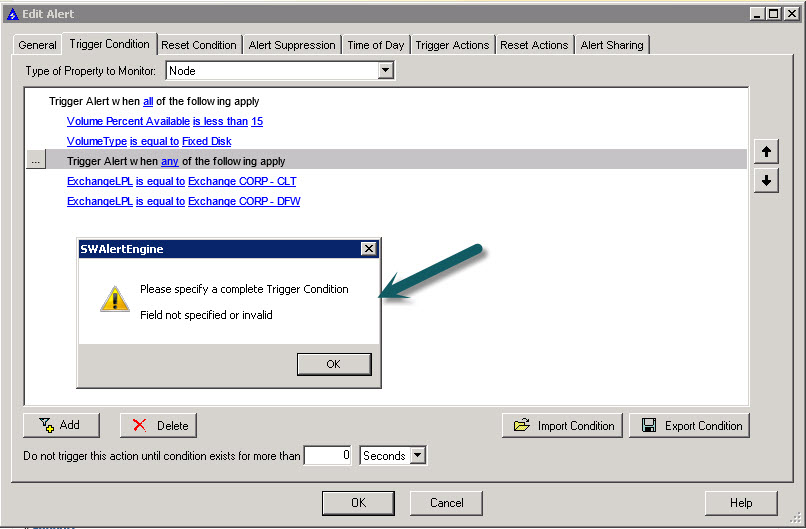
I am trying to create an alert to only trigger when a disk is below 15%. I can do that but then I want try to trigger by group name and I get an error. I want the alert to trigger only for servers in a defined group.
Thanks
David
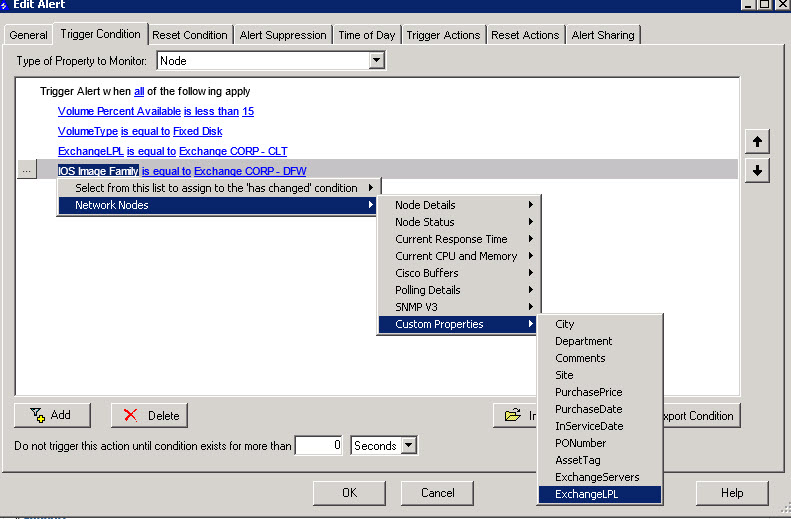
I see a couple of issues. You have changed the property monitor from volume to node just to select the custom property. leave it as volume. You still have access to the node properties.
Second - u need to choose the ... button to the left of the "any" condition group to add the simple conditions to the group. It looks like u went back to the top to add the simple conditions on the custom properties. All the conditions are at the same level - no indentation. See the comment on my first screenshot with this specific caution
see response to similar question Re: Advanced Alert Manager Trigger Condition Issue: "You have changed the trigger conditions..."
if the only reason you created that group was for this alert, then a Volume custom property route will do the trick.
If you want the group as well, then edit the group and for the 'add / remove objects' define a dynamic query based on this volume custom property rather than explicitly choosing the volumes
p.s: may want to move this to NPM or SAM forum
My goal is to alert on low disk space only for servers in the defined groups. I don't want alerts for every server listed so I can send e-mails to selected groups.
So my goal is if group A has a server with low disk space below 15% trigger.
Custom properties is the most optimal route for this use case IMHO. Do this for 1 group, and I will provide additional instructions when I have access to a bigger keyboard to handle this in a single alert even across multiple groups ( even with different thresholds for each group)
Thank you sir!
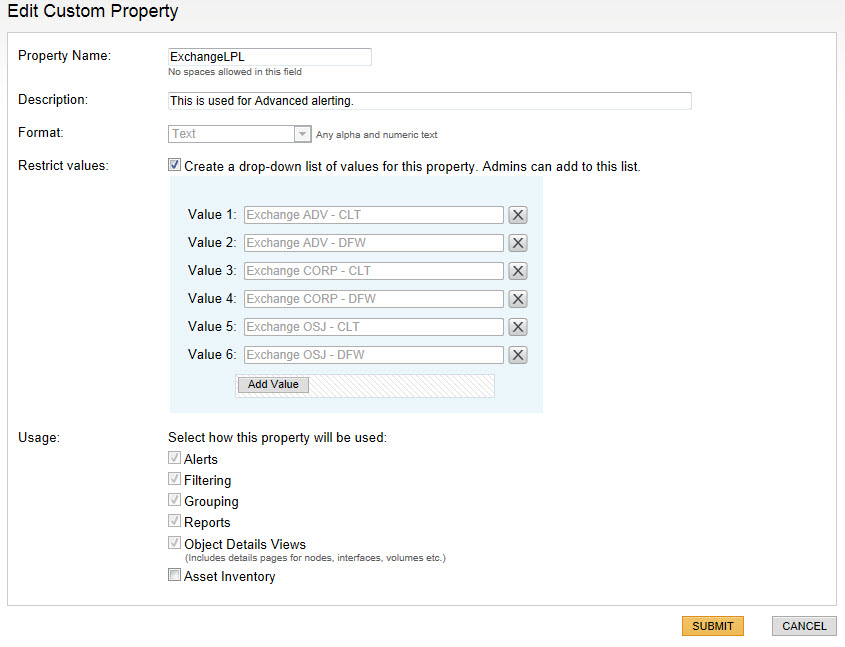
ok, lets say a bunch of servers belong to Group1 and a bunch of servers belong to Group2. Let's create a Node custom property called GroupCP (in the web console, Settings > Manage Custom Properties provides access to the custom property editor). You can also have a drop-down list of values to avoid typos.
assign these custom property values to nodes from the same editor.
Now, edit/add a group. (If editing, remove any explicitly selected nodes). Click on the 'Add Dynamic query' button. Define the query like shown below
Now you have your groups re-created just like before.
To define your alerts
- say your criteria is used % > 85 % for any volume on servers belonging to Group1 or Group2. your trigger condition would like below. notice the comment on indentation and condition groups.
say, for all volumes in Group1 you would like the threshold to be 85% and for Group2 you would like 80%. then the trigger condition would look like below
say you wanted completely different thresholds for different volumes. threshold of 85% for D drive on server1 (group1), threshold of 90% for F drive on server2 (group1), then you can create a Volume custom property (let's say VolumeUsedThreshold) and set the thresholds for each volume. your trigger condition would like below. the second condition is a 'complex condition'
As you can see, custom properties make it very easy to handle a bunch of different alert criteria.
Now, you may want to different people to be notified based on the node ownership. You guessed it, custom properties! When you add an email action, a little known fact is that the Email To, cc and bcc fields can use custom property variables (macros). See below an example for the PrimaryContact Node custom property - ${Node.PrimaryContact}
Of course, you can add the conditions on volume type = fixed disk like in your screenshot.
You want to monitor a node or volume within a group. Keep the group argument, but change your property type to alert on.
Volume or something as such related to the values you are inputting.
Thanks! I will give this a shot and report back........
Well I tried this and still get the same error.. Only way I can save it is choose type of property to monitor to volume and then it changes my custom property back to IOS image.
You have just become my favorite person!! That did it.