Orion provides a lot out of the box reports but it will not meet all users need. Depends on the actual requirements, it may be possible to customize an ootb reports or have to start from scratch.
For most of the cases, users simply need to change time frame, add/remove a few columns and configure the layout of report for that. Further, users can add charts to that report and make it more visually presented.
If needed to create a new report, it is also easier to start with existing charts and tables which are widgets used in normal pages.
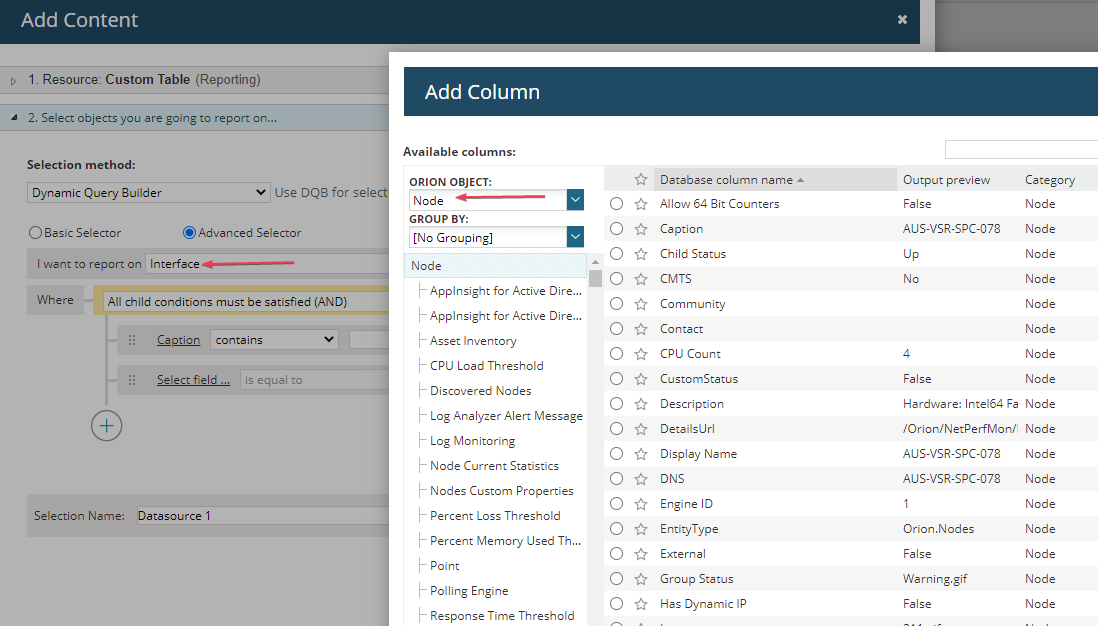
Use custom table/chart will allow users to confiture their own data source (with filters) and structure a report as desired. Orion provides a lot report templates and preselected items associated with the templates (so not everything available). When creating a new report, make sure to start with the closest template and then use 'Advanced Selector' to link to its parent objects, dependencies. For instance, to report on specific devices' link utilization, use Interface as the template/data source, and then in advanced selector, switch to Node and apply filters to limit the number of nodes returned. Similar to that, start from Component -> Application/Node or Netflow History -> Node for filtering. This usually helps with report performance and a higher chance to include all desired data in report.
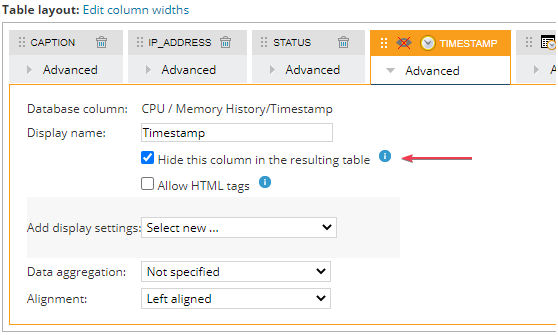
When a performance counter object is included in the report, Orion automatically adds its related time object and mark that as hidden. That helps with further filtering the date/time range for a report and easier with aggregation and grouping operation.
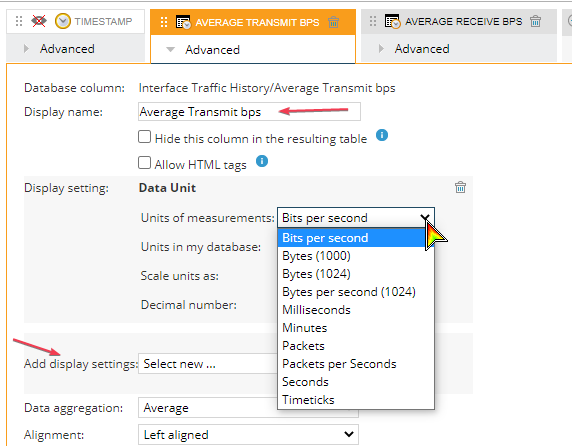
By default, the report column name is the same as saved in orion database, but this can be override just for user preference.
For different performance counters, report should automatically assign a related data unit. If not, this can be changed from display settings and Data Unit. So instead of seeing 1234567890 Bps, it shows 1.15GBps.
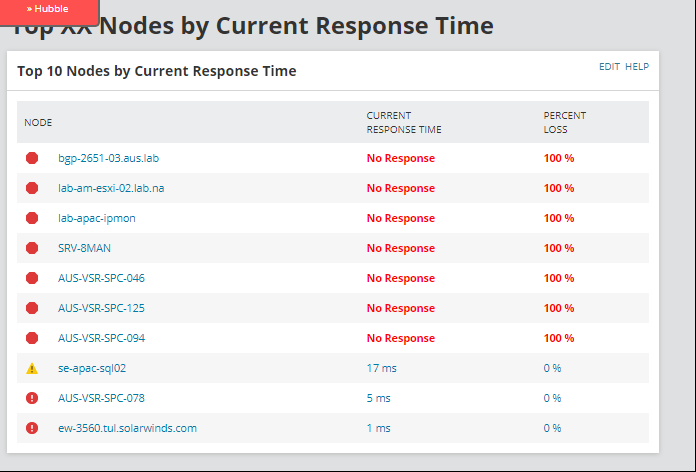
For more advanced reporting requirements, users could use SQL/SWQL (SWQL is recommended, as database schema may be changed in new releases and break the original SQL report). This requires users have some query and Orion database/SWIS schema knowledge, but on the other hand, will allow users to report on anything collected by the solution, even to link netflow/log analyzer data with other products' data. It is also recommended to structure and test the query from SWQL Studio or SQL Server Management Studio (SSMS) before put them in report. To get start, users could leverage 'Hubble' to find a query used for existing report or a widget and modify on top of that.

Time series parameter should be included if a report allows users to further select time range, but could be hide from displaying (as mentioned previously). For instance, setup a condition like where timestamp > ${FromTime} and timestamp < ${ToTime}
Note: Most of the tables (e.g. Orion core related, as of v2020.2.5, may change in future) storing data using local database time zone while some of the tables (NPM, NTA related) are storing data in UTC time zone, so a conversion is required to properly filter out the required datetime range. For instance, in SWQL: GetDate()/GetUtcDate(), ToLocal()/ToUtc() and in SQL: dateadd(hour, -8, TimeStamp) where -8 is the actual time difference and timestamp is the datetime column used.
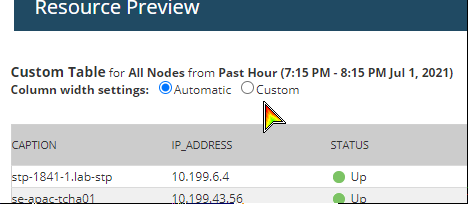
Before submit the report, click 'Preview Resources' to check how the report looks like and adjust the column width if required.
Schedules
This is by default used for scheduling existing reports, but it also provides the capability to send out any url's screen capture as report where Solarwinds server has access to.
- Schedule a summary page or a custom view, new dashboard. If users already have a customized view and want to use that as a report template, simply copy the url and schedule it.
- Schedule any url that Orion server can access to and doesn't need login. For instance, quarterly WWWO update, a specific feature request, a public facing web page with monitoring metrics.