Background
Talking to our users about alerting thresholds/limits are typically one of the touchiest subjects. When do we want to wake someone up? Is the threshold acceptable or should we adjust them? How far do we want to push the limit? And as a Monitoring Engineer (yep if it’s a job title); knowing your limits is a critical piece to most of your work. Allow me the time to explain a situation I encountered at work and how knowing my limits helped strengthen our alerting ahead of our busy Holiday Selling season.
Like most of you, we have some standard alerts that I offer to users when they first approach me about monitoring and then alerting on their device. Yes, there is a difference between monitoring and alerting. You can monitor a device without waking someone up at 1:00 am when the CPU spikes to 100% in the middle of the night if that isn’t an issue for a particular node but that should be part of your monitoring setup discussion with your user. But I degrees. My standard alerts include High CPU, High Memory, and High Volume uses. My standard alerts work off a 90/95/99 model. What I mean by that the normal thresholds I use are at those values. In my company, I found that most of my users prefer these levels. For a majority of my alerts, I’ll have an alert that is set to trigger an alert if a node’s hard disk (aka volume; for example) is between 95% - 98% and that is where knowing your limits come into play. Note the keyword, between.
Please note, all information and screenshots below are taken from my home lab.
Know Your Numbers...
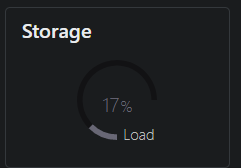
Let’s talk about limits. We will start from the node summary details vital stat page. When you go to the vital stat page, as you know (or if you are new to Orion will quickly learn) that the vital stats page of a node's detail provides you with some great information. But note, the numbers are normally presented in whole numbers. So if we look at the hard drive of my personal desktop which I am of course monitoring with SolarWinds; you’ll see that my C:\ drive is 17% used.
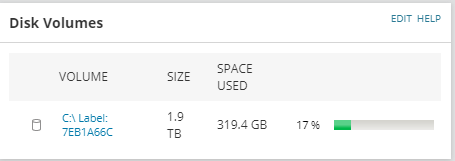
And this is confirmed when looking at my NZXT CAM software
Setting up an Effective Alert
Now let’s look at this from an alert standpoint. For the following, I’m setting up an alert that triggers against a volume on any machine I’m monitoring in my home lab. And knowing the use of my Desktop, I’ll be using a rather low percentage to help demonstrate why knowing your limits is so important. Please note, I do not recommend using such low limits within your alerts unless you want to cause alert fatigue
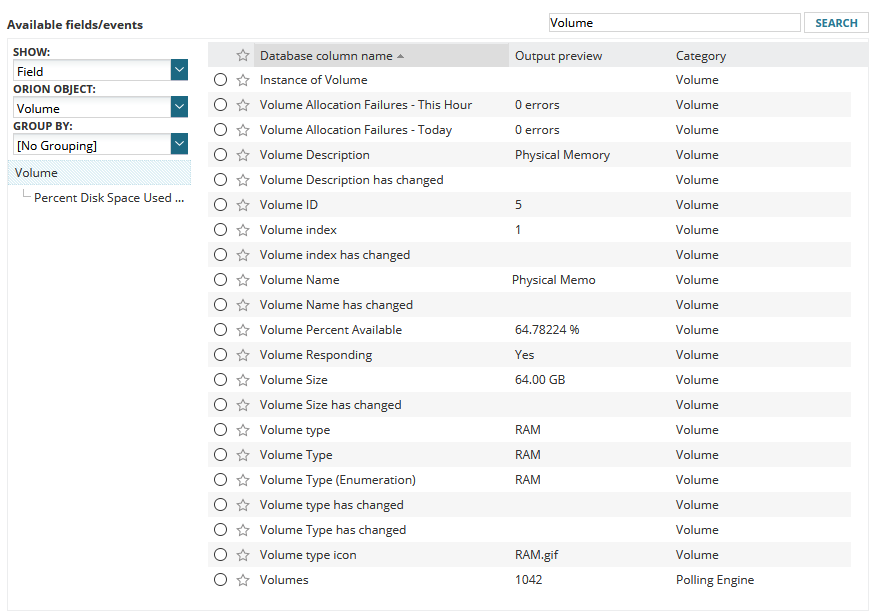
One secret of knowing your limits is changing the “Output Preview” when setting up your alert. 
When you click on “Change” a pop-up will come up where you can search for a node and select the element you are setting up an alert for.
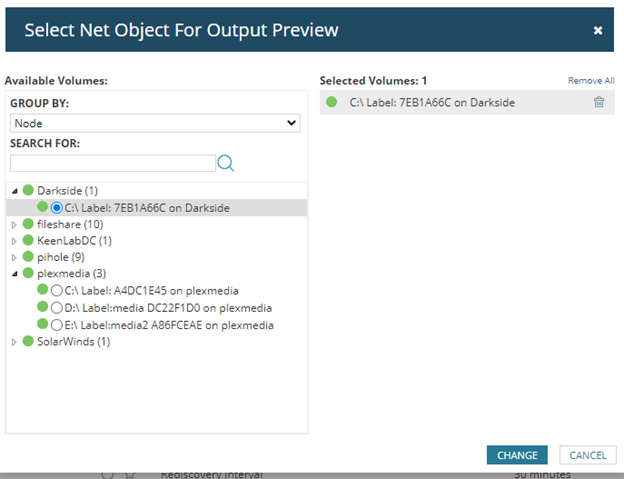
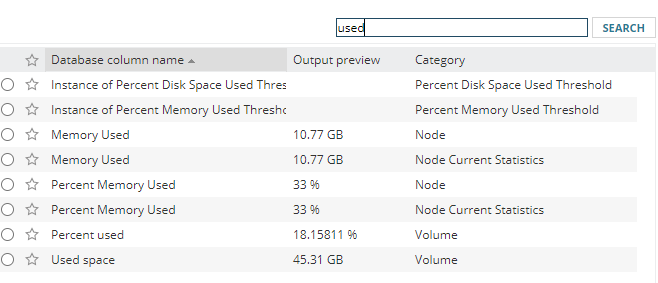
When you do this, the output preview will be the current stat for that element from the node you selected. And since we started by looking at the C:\ Drive on my desktop which we established was “17% used; let’s see what the output preview shows us.

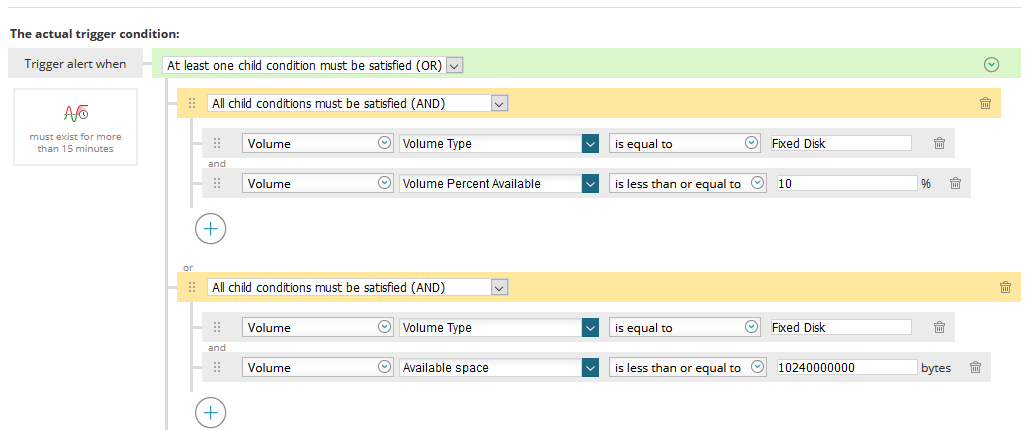
And there you go, a prime example of knowing your limits. As you can see, the stat is rounded up to 17% from 16.7%. So if we were to set a trigger condition like this:

You will notice when you get to the end of setting up the alert; 0 objects will trigger the alert.
But wait, the vital stat page shows 17% right? Well yes and no. As we just established, while the stat page shows 17% the actual value in the database is 16.74742%. So let’s take this back to my work environment. Early when preparing for the busy holiday season, we noticed that our volume alert weren't not going off but the dashboards showed devices at the threshold. For example, we had a node that had a volume at “98%” which should have triggered an alert. I looked at the conditions and the conditions were set to the volume usage had to be greater than or equal to 95% and less than or equal to 98%. The next level alert is set to trigger when the volume hits 99% or higher.
See the issue yet? That’s right, we are skipping anything between 98.1 to 98.99999% and that is where our problem existed.
Conclusion
The led to the question of "what is the fix". It was rather easy. We adjusted the conditions to read that the volume use had to be greater than or equal to 95% and less than 99%. There we go, now we have the full range covered. Knowing your limits is key to an effective alert and I hope this article provides you with some information that will hopefully save you from banging your head on the wall. Remember, trust but verify!