I decided that it was about time I give something back to the Thwack community so thought I’d start by sharing my workflow for automatic emergency disk space clearance (I hope I put it in the right place).
In this example I will go through a simple temp file clearance on system drives but you can modify to your needs. Essentially all volume alerts remains the same but we are going to create an additional one for utter emergencies when the drive is 99%+ full. It will wait for 10 minutes in this state before sending an email containing links to acknowledge the alert warning that if not acknowledged in 10 minutes the temp files older than 24 hours will be deleted.
I’m sure there are lots of ways to do this but this is one that worked for me and it may for you. It involves a few steps which I will go through and highlight a couple of snags I came across when first setting up:
- Creating custom field on volume
- Creating alert to populate custom field
- Create Powershell script
- Create the alert to fire the Powershell
Before continuing you must make sure that all servers you want to access have been configured for WinRM.
1 - Creating custom field on volume
Go to ‘Manage Custom Properties’ (/Orion/Admin/CPE/Default.aspx) and click ‘add custom property’. Select type of ‘volume’ and hit ‘next’.
Give it a property name of something meaningful such as ‘AutoDeleteTemp’, give it a description and select the format of ‘text’. Tick ‘restrict values’ and enter the values ‘NO’ and ‘YES’
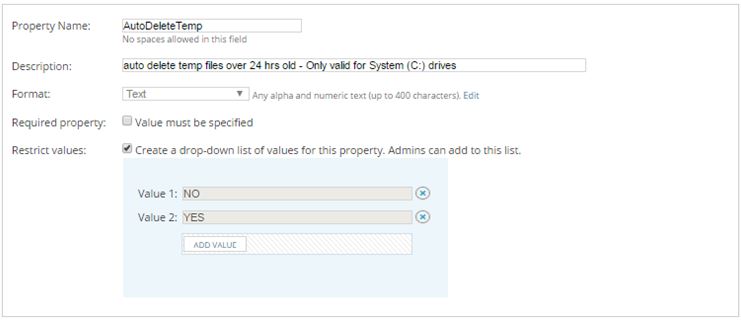
Click ‘next’. On this page select ‘YES’ from the drop-down and then click ‘select volumes’.
Select ‘caption’ for the ‘group by’ field and in the ‘search for’ field enter “C:” and hit enter. Assuming you are using default captions you will see all your system drives. Select all and push them to the right-hand pane and click ‘select volumes’. Select ‘Submit’.
Snags: The only snag I had at this stage was that I initially used boolean values but this gave no ability to auto populate the field because all you can watch for is a ‘no’ value which could be either a new drive or someone has intentionally set it to no so this wasn’t good enough. Using a text field with yes/no pre-selections means that we can populate any system drives with a null value because if intentionally set it will be ‘no’ not null.
2 - Creating alert to populate custom field
Go to ‘Manage Alerts’ (/Orion/Alerts/#) and click ‘add new alert’.
Give the alert a meaningful name and description, set it to evaluate trigger every 6 or 12 hours and give it a severity of ‘informational’ so it’s clear there is not problem. Click ‘next’.
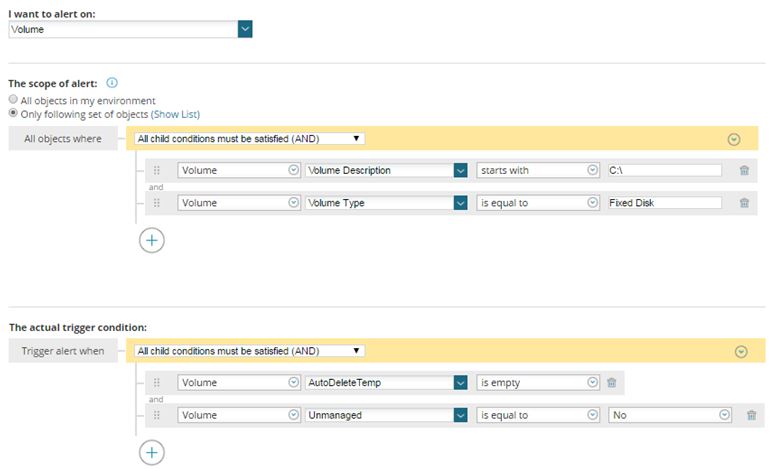
Select to alert on ‘volume’.
For the scope use ‘volume->volume description->starts with->C:\ AND volume->volume type->is equal to->fixed disk’.
For the trigger use ‘volume->AutoDeleteTemp->is empty AND volume->unmanaged->is equal to->No’ (see snags below for reason for the latter).
Click ‘next’
Select ‘reset this alert automatically after’ and give it a reset time of 30 seconds. Click ‘next’ and ‘next’.
Give it a meaningful message and add a trigger action of ‘change custom property’.
Name the action, select the change property name of ‘AutoDeleteTemp’ and a property value of ‘YES’. ‘Save changes’. Then ‘next’, ‘next’ and ‘submit’.
Make sure the action is enabled.
Snags: For some reason the alert would fire on unmanaged volumes but would not change the custom field value so all unmanaged volumes would flag alerts every 6 hours. Hence my inclusion of the additional trigger action.
3 – Create Powershell Script
On your main poller create a folder called ‘scripts’ (I put mine on D drive). Create a text file here called ‘deletetmps.ps1’ and open it in the text editor or ise of your choice.
OK, here goes:
First of all we need to pull the server name into a usable variable (This will be explained a little more in step 4):
$ser = $args[0]
Next I wanted to create a reusable full path:
$server = "\\$ser\c$\temp"
I created a simple foreach loop within an if statement:
if (Test-Path "$server") {
$thisdate = (get-date).adddays(-1) # get todays date minus 1 day
$A = gci "$server" -File -Recurse | where {$_.lastwritetime -lt $thisdate}
foreach ($aa in $a) {
Remove-Item $aa.FullName
} #end for each
} #end if
If you want to log what it attempted to delete add the following line before the “} #end for each”:
$aa.Fullname | Out-File -Append \\swoauk1\d$\scripts\output.txt # record what has been deleted
I added some crude error logging at the end:
if ($error) { $error | Out-File -Append \\SERVER\d$\scripts\errorlog.txt } # crude error logging
Followed by a closing ‘exit’ for good measure:
Exit
Save the file
Snags: I found that it was at first running though and logging but just not doing anything within the if statement. I added logging and discovered it was an access denied issue. See the snags under section 4 for my resolution.
4 - Create the alert to fire the Powershell
OK, back to ‘Manage Alerts’ (/Orion/Alerts/#) and click ‘add new alert’ again.
Again, give it a meaningful name and description. Set the trigger time to every 5 minutes and the severity of ‘informational’. The intention is that this alert fires in addition to your usual critical volume space alerts. Click ‘next’.
Alert on ‘volume’.
Select ‘only following objects’: volume->AutoDeleteTemp->is equal to->yes AND volume->volume type->is equal to->fixed disk.
For the trigger action: volume->percent used->is greater than or equal to->99
Tick the ‘condition must exist for more than’ and enter 10 minutes. Click ‘next’.
Select ‘reset this alert automatically after’ and enter 1 hours. Click ‘next’ and ‘next’.
Enter a meaningful display message.
For escalation level 1 add an email alert so warn that in 10 minutes temp files will be cleared unless the alert is acknowledged. Make sure you include the variable for the acknowledge url to make it quick and easy to halt the process.
Create a second escalation level to enter an NPM event log message, email to say the delete has been attempted and a third one ‘execute and external program’.
Enter the following in the network path:
powershell.exe -file "D:\scripts\deletetmps.ps1" "${N=SwisEntity;M=Node.AssetInventory.ServerInformation.DNSName}"
The long variable will convert to the true alerting node name. Being the first thing in the command line after firing up the Powershell script it will be seen by the script as the first arg and can then be used as a variable within the script.
Define the user and enter a domain admin account (or one that has access to and delete from all servers). Test the credentials (nb. If you get a test failed ‘check replace a process level token’ then read my snags below for solution).
Snags: I initially had an access denied issue as mentioned in section 3 but was unable to run as another user due to the error “Check 'Replace a process level token' account privilege of user which runs Solarwinds Orion Module Engine service.”. There is a url on the error but the destination page is no longer active. It took some time to work out all the issue was is that the default local account running the Solarwinds Module Engine service didn’t have rights to run powershell against the remote servers so I just changed the service to run as our Solarwind Admin account and hey presto, all was authenticating and working.
Well, I hope this is of use to atleast one person, even if just gives you ideas – let me know if it has been of some use to you and how you’ve tweaked it to run better for you.