sing the Universal Device Poller isn't very difficult, but it did take me a bit to figure out how to create a multi-column table. The information is available in the tutorial video but I thought it might help someone out if I posted a quick overview of the process. This post assumes you already know how to make a table-oriented poller in the Universal Device Poller. If so, you're almost there. The part I got hung up was how to go from a table with one value column to a table with multiple columns. So hopefully this might help someone get there quicker! :-)
The video tutorial is here:
Create a Universal Device Poller (UnDP) in the Orion Platform - SolarWinds Worldwide, LLC. Help and Support
Step 1: Create a set of custom device pollers and assign them to an (arbitrarily-named) group and then go through the process to assign them to one or more nodes. We'll assume you've set them up to display as a table on the "Node Details" web page.
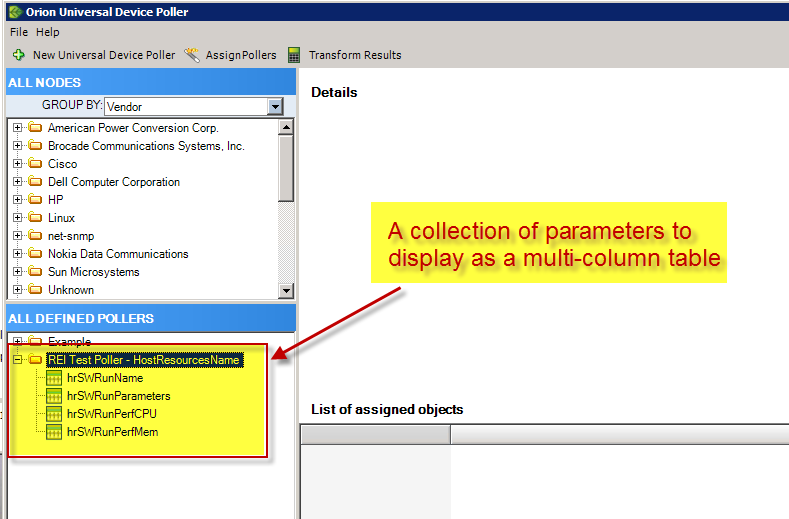
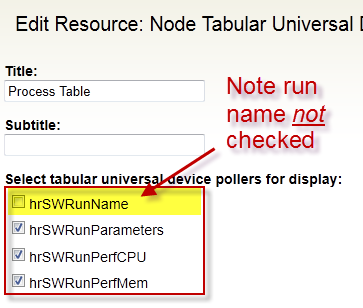
Step 2. Once you have assigned them to a node, go to the "Node Details" web page and select one of the Universal Device Poller tables, there will probably be more than one, and click the EDIT button. BTW, as an aside, later when you're finished editing the table, you can use the "Configure Page" process to remove the remaining unneeded Universal Device Poller tables which get automatically added. But for now, pick on of them and hit "EDIT". Then select all of them except for the one that you're going to be using for your row labels.
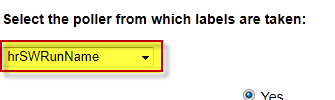
Step 3. Then at the bottom of the page, in the drop-down box, select the one that you didn't check from up above, to use for your row labels.
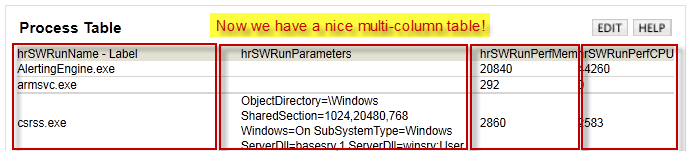
Step 4. Now when you go look at the "Node Details" page you should find a nice multi-column table containing your data. In the example I made, I collected information about the system's process table: