After installing a new system of v12.0.1 NPM on new servers, the web console would not come up, it gave "page could not be found" errors. Google searches turned up sort-of solutions with rather complicated possibilities.
Here is the solution that was very simple:
1. Start the MS IIS server on your Orion server. You'll get an item in the list under Connections with the name of your NPM server. Expand the listing and you'll see

2. Right click on the db name of the db you are using in SQL. In this case, it's NetPerfMon. Then choose the option "Edit Bindings".
3. In the Site Bindings window, you'll probably see only the line for the port 80 http binding, but it may not. However, it will have some kind of mistake in it that is preventing the web console from
appearing.

4. Add a line similar to what I have in the first binding. In my case I wanted to ONLY have https access on the normal port 443. That's why you see only a single line above. I created it then deleted the mistaken line which was causing the problem.
5. Add the site binding you want. If you want only http access on the usual port 80, enter your server name then click OK.

I left the IP address "All Unassigned" because I did not yet have an SSL certificate already installed for this website (from a CA). The name under SSL certificate is filled in by default and will cause the usual security error when you use your URL to access the Web Console saying the certificate is suspect. I clicked on EDIT to get the screen below to show this certificate issue. If you do later get a cert, you can add it here if you want to do https: access to the Web Console.
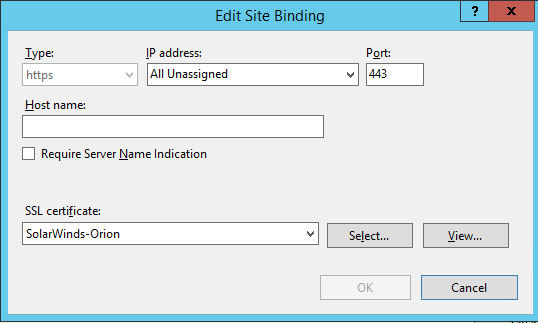
6. Now delete the problem binding from the list of bindings. You'll only see your binding(s) you want to use.
7. Get a CMD window on your server and type the command "iisreset" command to restart the IIS service so it can read in the new binding info you added.
You should be able now to start your Web Console, a rather important website to have functioning...