Okay, so by now you should know that I like tinkering...and showing you how I do it. See the following for two examples:
Today's lesson will be in VBA for Outlook. The challenge? Schedule a meeting/appointment on a public calendar for all to see while simultaneously sending a specific person a one day reminder to take care of the newly scheduled event. Simply put, control and manipulate both public and private calendars.
Time for the pictures! Here's what I came up with using the Outlook VBE, referencing the Calendar control:
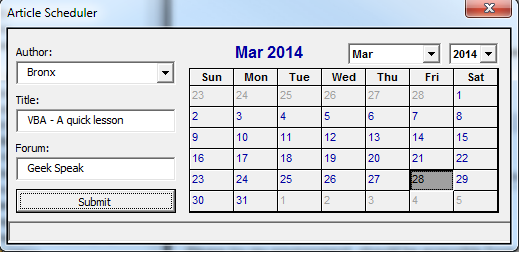
Simple right? Fill in the fields, pick a day, then Submit. Here's the result of hitting that li'l Submit button:
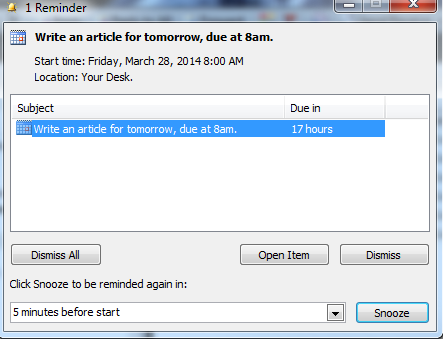
My personal calendar gets a 24 hour reminder scheduled at the right time.

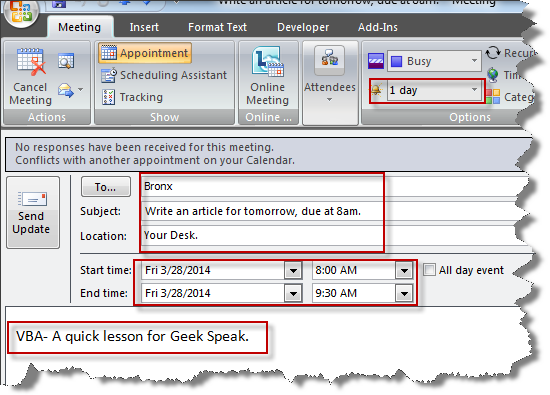
Public calendar also gets updated so others can schedule around what is going on.

Before I show you the code
If you do not know what VBA is or how to access it in Outlook, go figure that out first. The form (Article Scheduler) at the top of this page lives here in the Outlook VBE:
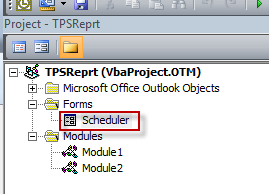
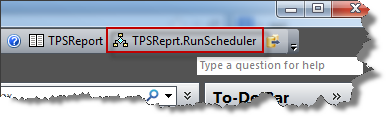
You'll need to create the form with the control names I have in the code below. Also, to run this from your Outlook toolbar, create a new Module (I have two above). In the new module, enter these three lines of code:
Sub RunScheduler()
Scheduler.Show
End Sub
Once complete, you can drag the macro button to your toolbar.
This is not a tutorial. Rather, it is an example you can tailor to your own needs by examining the code and changing what you want to get the desired effect. A litlle VBA research on your part may be in order.
The Code (Put this in the code section for the Scheduler form):
Dim ola As Outlook.AddressList
Dim ole As Outlook.AddressEntry
Dim WriteDate As Object 'Date
Dim EmailAddy As String
Private Sub Calendar1_Click()
txtMsg.Text = ""
End Sub
Private Sub CheckBox1_Click()
CheckBox1.Value = Not CheckBox1.Value
End Sub
Private Sub ComboBox1_Change()
txtMsg.Text = ""
End Sub
Private Sub CommandButton1_Click()
Dim myItem As Object
Dim myRequiredAttendee, myOptionalAttendee, myResourceAttendee As Outlook.Recipient
If ComboBox1.Text = "" Then MsgBox("Really? Step 1 is entering an author's name.")
If CheckBox1.Value = True Then
Dim objOutlook As Outlook.Application
Dim objOutlookMsg As Outlook.MailItem
Dim objOutlookRecip As Outlook.Recipient
Dim objOutlookAttach As Outlook.Attachment
EmailAddy = ComboBox1.Value
WriteDate = Calendar1.Value & " 8:00 AM"
myItem = Application.CreateItem(olAppointmentItem)
With myItem
' Add the To recipient(s) to the message.
myRequiredAttendee = .Recipients.Add(EmailAddy)
myRequiredAttendee.Type = olTo
' Resolve each Recipient's name.
For Each myRequiredAttendee In .Recipients
myRequiredAttendee.Resolve()
Next
End With
myItem.MeetingStatus = olMeeting
myItem.Subject = "Write an article for tomorrow, due at 8am."
If txtTitle.Text <> "" Then
myItem.Body = txtTitle.Text & " for " & txtForum.Text & "."
Else
myItem.Body = "Write an article for tomorrow, due at 8am."
End If
myItem.Location = "Your Desk."
myItem.Start = WriteDate
myItem.Duration = 90
myItem.ReminderMinutesBeforeStart = 1440
myItem.ReminderSet = True
myRequiredAttendee = myItem.Recipients.Add(EmailAddy)
myRequiredAttendee.Type = olRequired
myItem.Send()
ComboBox1.Value = ""
txtMsg.Text = "Reminder sent to " & EmailAddy & "."
Dim myNameSpace As Outlook.NameSpace
Dim myFolder As Outlook.folder
Dim myNewFolder As Outlook.AppointmentItem
myNameSpace = Application.GetNamespace("MAPI")
myFolder = myNameSpace.Folders.Item(3)
SubFolder = myFolder.Folders("All Public Folders").Folders("Your Public Sub Calendar").Items.Add(olAppointmentItem)
With SubFolder
.Subject = EmailAddy
.Start = WriteDate
.Save()
End With
End If
End Sub
Private Sub UserForm_Initialize()
Calendar1.Value = Now
ola = Application.Session.AddressLists("Global Address List")
For Each ole In ola.AddressEntries
ComboBox1.AddItem(ole)
Next
ola = Nothing
ole = Nothing
End Sub