What is the SolarWinds server and application monitor?
SolarWinds Server & Application Monitor (SAM) is designed to monitor your applications and their supporting infrastructure, whether running on-premises, in the cloud, or in a hybrid environment. ... Comprehensive monitoring for Microsoft applications, systems, hypervisor, IaaS, PaaS, and SaaS products.
Orion Platform – Cloud
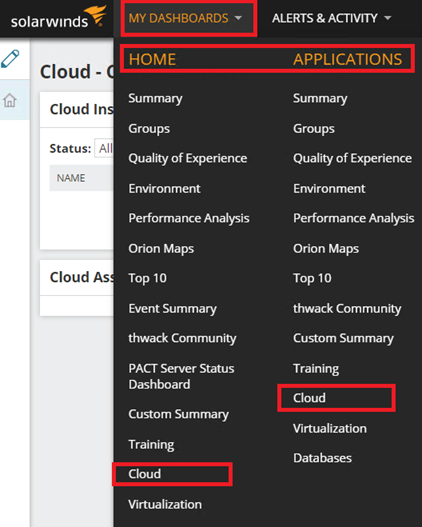
In the Orion Web Console, click MY DASHBOARDS >> HOME or APPLICATIONS, >> Cloud
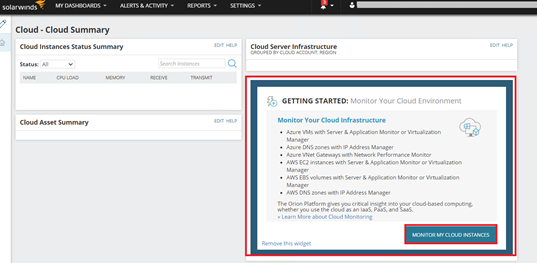
You can see the option GETTING STARTED: Monitor Your Cloud Environment
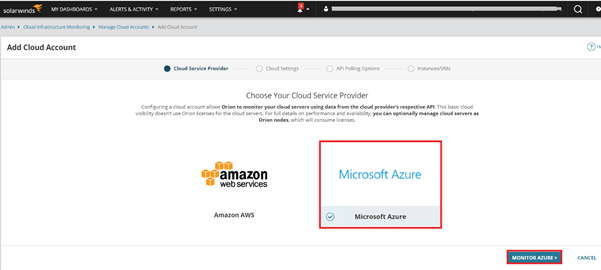
You can see it here. There are two options AWS & Azure.
So, select the Microsoft Azure
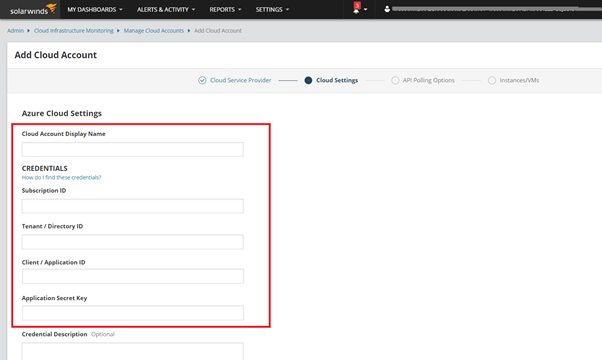
Fill in these details, It has to collect from Azure Portal.
Cloud Account Display Name - Enter the name
Subscription ID - Select Subscription (Azure)
Tenant / Directory ID - Collect from Azure AD Tenant ID
Client / Application ID - Collect from Application ID in Azure AD
Application Secret Key - Collect from Application Secret Key in Azure ID
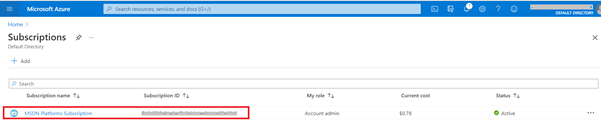
Azure Portal open
Subscription ID
- Used by Microsoft to manage the bill.
- Grants access to the Azure Portal.
- Governs access to and use of Azure services.
- Each deployed resource is linked to only one subscription.
Copy to paste into Orion Cloud Settings.
Active Directory (AD)
Open Azure Active Directory (AD)

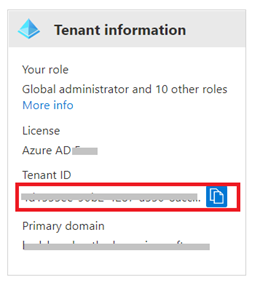
Tenant/Directory ID
Select Tenant ID from Azure Active Directory
Linked to an Active Directory (AD) app that enables the Orion Platform to access Azure.
Copy to paste into Orion Cloud Settings
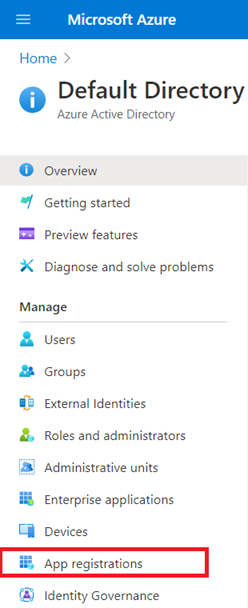
Open App registrations for getting Application & Client Id
Select and open the correct application.
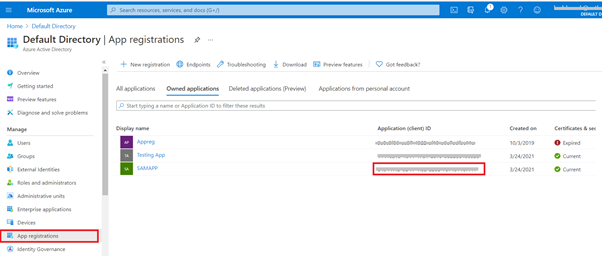
Client/Application ID
Used to grant permissions.
Often called the Client ID in external applications.
Copy to paste into Orion Cloud Settings.
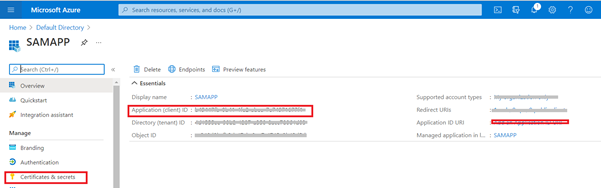
Open the Certificates & Secrets Option.
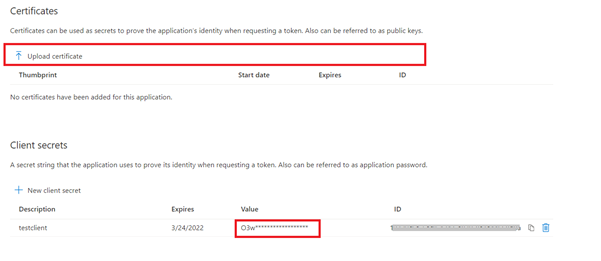
Need to upload certifications.
Client Secret Key
Select Client Secrets.
Copy to paste into Orion Cloud Settings.
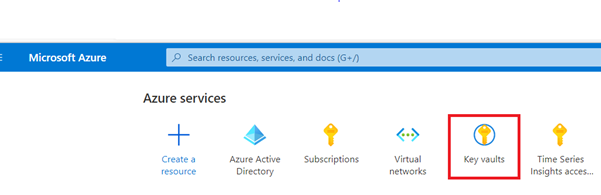
Key vaults
You can save your Client secrets key into Key vaults.
Orion Platform Testings.
After that, filled the details, then click the Test connection. And You can able to see the result. “Connection successful”
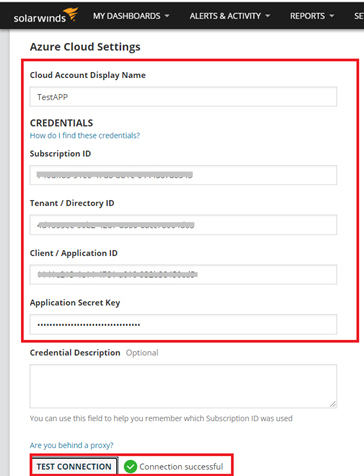
If you have any requirement, will able to change this. Then Click the Continue option.
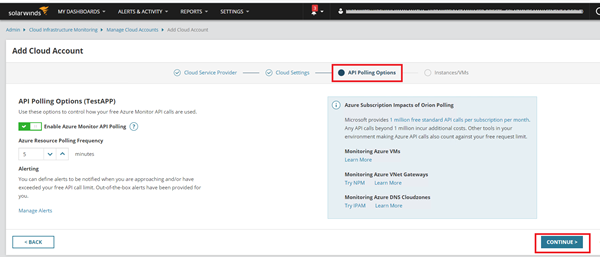
Here, You can able to see the VM (Azure). select and finish option.
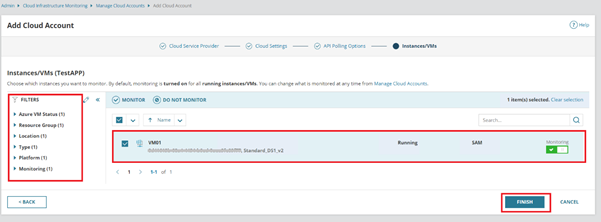
After that, select Application and added VM.
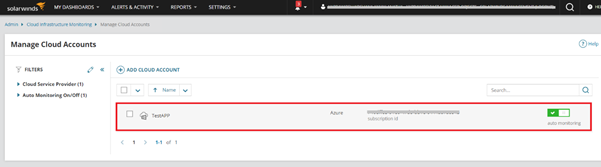
Now, we can able see the VM details and process information.
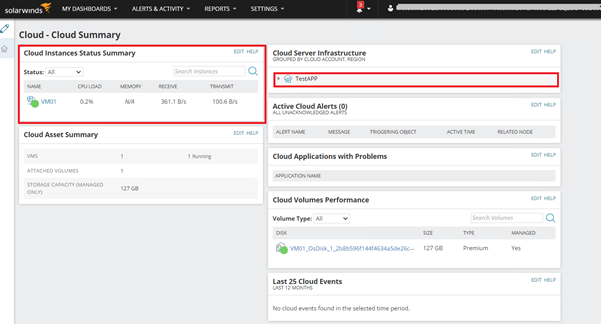
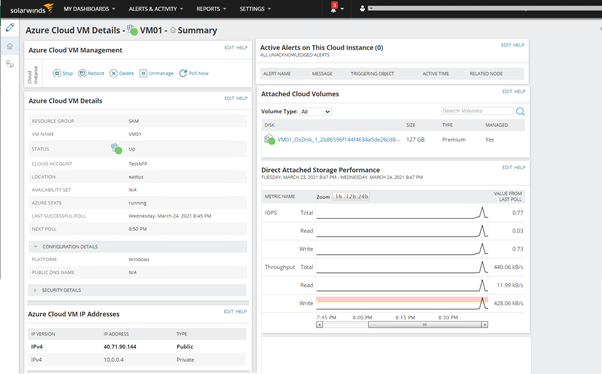
upon successfully configuring the Azure cloud monitoring into the Orion platform with Server & Application Monitoring (SAM) customers can add the Azure Infrastructure into the Orion platform.
This includes Azure VM monitoring/Server Infrastructure/Cloud Application/Cloud Volumes monitoring.
The client can have included the VM utilization/Resource utilization forecast where the client can have a better understanding of upgrading/downgrading the resources.