If the DPA Server is unexpectedly down, follow these steps to detect if it crashed and to also gather diagnostic information to provide to SolarWinds Support.
- Review the content of this directory and see whether there are files with *.mdmp and *.log extensions.
- Go to <DPA_install_dir>\iwc\tomcat directory
Look for the following files. (<number> will be different based on the process id of the DPA Server):
hs_err_pid<number>.log
hs_err_pid<number>.mdmp
- If the files are present, this indicates the DPA Server crashed instead of being cleanly shutdown. Gather the following information:
- Go to the DPA home page.
- Take a screenshot
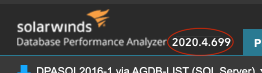
- Write down the DPA build number you are currently running. The build number will be in the upper left-hand corner and look something like 2020.4.699
- Gather all DPA Log files:
- Navigate to the Options page
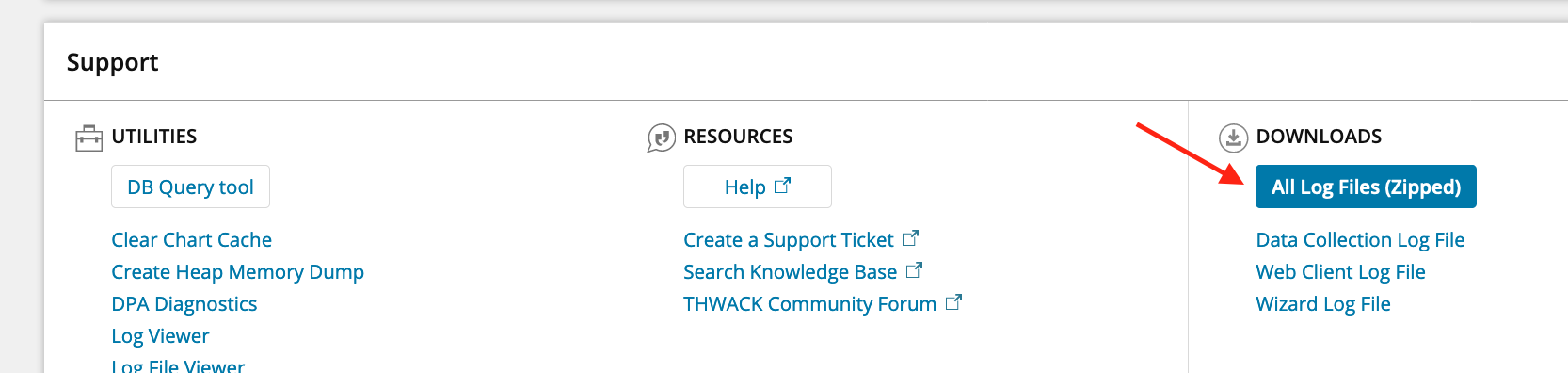
- In the bottom Support section, look at the Downloads area on the right and click the "All Log Files (Zipped)" button.
- DPA will conveniently gather all the pertinent log files into a *.zip file
- Contact SolarWinds Support and provide:
- The DPA Server build number and screenshot
- All the hs_err_pid<number> files that you located
- The zip file of all the DPA log files