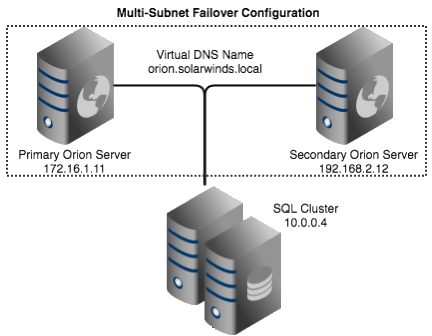
High Availability 2.0 provides the first peek into supporting redundancy for Orion across subnets. This was previously referred to WAN deployment or Disaster Recovery with the Failover Engine, but under High Availability we refer to this simply as a multi-subnet failover configuration. In other words, this provides the same automated, near instantaneous, failover and recovery mechanisms as High Availability does in its first release, but extends that functionality to support pollers spread across different subnets. Those could be different sites, a dedicated disaster recovery location, or possibly even the cloud.
HIGH AVAILABILITY REQUIREMENTS
- High Availability 2.0 Installer (Built-in and located under [Settings -> All Settings -> High Availability Deployment Summary -> Setup A New HA Server -> Get Started Setting Up a Server -> Download Installer Now]
- High Availability 2.0 Can be used only with product modules running with Orion Core 2017.3
- Two servers running Windows Server 2012 or later
- Both primary and secondary servers must reside on different subnets for multi-subnet failover
- Primary and secondary servers which reside on the same subnet can be used for same-subnet failover using a traditional VIP
- Windows or BIND DNS Server credentials for configuring the virtual hostname
- Windows Server OS version, edition, or bitness need not match between primary and secondary servers.
- Primary and secondary servers may be optionally joined to a Windows domain
- High Availability supports the following configurations of primary and secondary servers.
- Physical to Physical
- Physical to Virtual
- Virtual to Virtual
- Virtual to Physical
- A separate server running SQL 2012 or later.
- This server does not need to reside on the same subnet as either the primary and secondary Orion server
- Any Microsoft SQL edition may be used, including SQL Express
- Bonus points for utilizing a SQL Cluster
PRIMARY SERVER INSTALL
When installing the Primary Orion server you will follow the normal 'Advanced' installation process that you would for any other Orion product. Ensure not to select the 'Express' install option during installation, as a separate server running Microsoft SQL 2012 or later is required. When the Configuration Wizard runs you will be prompted to provide the Username, Password, and IP address of the SQL server you will be using for the installation.
SECONDARY SERVER INSTALL
Once the primary server is up and running using the NPM 12.2 installer, you will need to perform a similar installation on the secondary server using the separate High Availability installer which can be downloaded from within the Orion web interface under [Settings -> All Settings -> High Availability Deployment Summary -> Setup A New HA Server -> Get Started Setting Up a Server -> Download Installer Now].
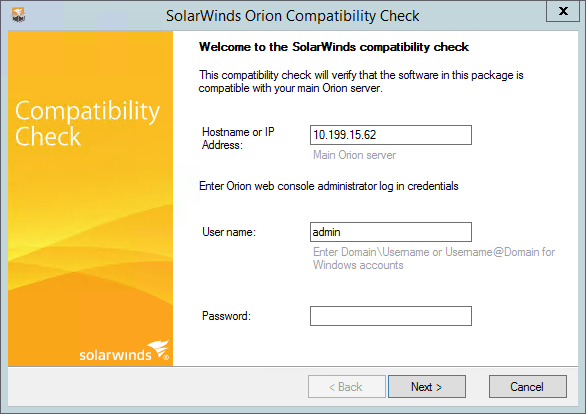
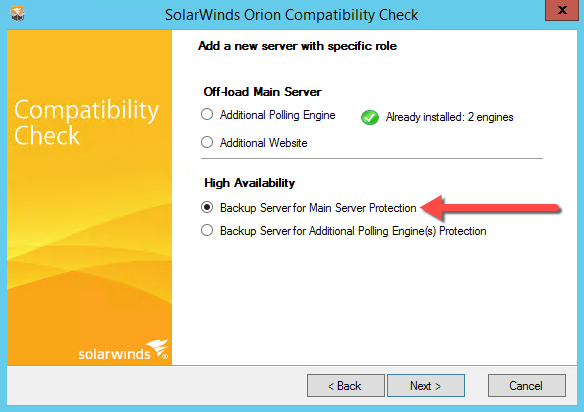
Next, execute the installation by double clicking on the "SolarWinds-Orion-Installer.exe" downloaded or copied to the secondary server. Enter the IP address of fully qualified domain name (FQDN) of your main Orion server, along with 'Admin' or equivalent credentials used to log into the Orion web interface and click 'Next'. On the following step of the Wizard, select the additional server role you wish to install. Since this will be a High Availability Backup for the main Orion server, select 'Backup Server for Main Server Protection' and click 'Next'.
Enter IP of Main Orion Server & Provide 'Admin' Credentials | Select Server Role to Install |
|---|
 |  |
Once the Installation completes the Configuration Wizard will be started. When prompted to provide information regarding the SQL server database, ensure you utilize the same SQL instance and SQL database that was chosen for the primary Orion server.
The following video, while arguably boring to watch, demonstrates the secondary server installation process.
 https://www.youtube.com/watch?v=hiFsv6j49xo