Hi all, I have prepared this KEDB (Known Error Database) based on the errors and issue i have faced so far. Hope this will be useful for the folks here. Below are the details:
1. SolarWinds Cortex agent piling up the disk space of target machine.
Resolution article suggested:
Agent Cortex files filling the drive space in Orion (solarwinds.com)
Agent disk space growing due to large Cortex Agent file (solarwinds.com)
2. SolarWinds alert actions are not working properly. New alerts not triggered as expected even they are shown in summary page of alerts that will be triggered immediately.
Resolution article suggested:
Error alert "condition evaluation failed, invalid username or password" in Orion (solarwinds.com)
3.We cannot see CPU & memory details in list resources even after SNMP test is successful.
Action Taken: Verify the level of SNMP access provided in the target device. Upgrade and provide required level of SNMP access
4. Unable to get Top 10 processes in the high CPU usage alert properly.
Resolution applied: Add minimum of 5 mins between executing external script & escalation level to send email and incident.
Another article to increase time out to 2 mins on the APE explorer as default is 1 min.
https://support.solarwinds.com/SuccessCenter/s/article/Real-time-Process-Explorer-polling-times-out?language=en_US
5. To test agent connectivity via port number for orion agent issues on server and agent-initiated communication below is the KB to check
https://solarwindscore.my.site.com/SuccessCenter/s/article/Unable-to-connect-to-the-agent?language=en_US
sample script format for server-initiated testing from MPE/APE: login to MPE/APE -- "Test-NetConnection -ComputerName <targetservername> -port 17790"
6. Unable to install any SolarWinds agent using Orion server-initiated communication due to weak Orion certificate. Update certificate on the Poller and reprovision all the agents.
https://support.solarwinds.com/SuccessCenter/s/article/Creating-a-new-self-signed-certificate-with-2048-bit-key-length-for-internal-Orion-communications?language=en_US
7.SolarWinds MPE/APE throwing false bulk server down/agent connectivity issues along SNOW integration stopped alert. And when you see below message in the event viewer logs of APE/MPE server. Follow below article:
Error message:

Resolution article: https://solarwindscore.my.site.com/SuccessCenter/s/article/Business-layer-crashes?language=en_US
8.we are seeing false server down & agent connectivity issue alerts generated from SolarWinds and it was identified that all the affected devices are monitored by Same poller which is primary polling engine this time. After restarting all Orion services from primary poller, all the alerts are getting closed automatically. It is evident that there is some underlying issue with the Poller.
Resolution applied: SolarWinds - Perform Collector & Job engine services repair, remove & recreate subscriptions in the database. Below are the detailed steps:
Take full Orion database back up.
Action plan:
A.Repair Collector Service
Collector:
- RDP to the Orion Server.
- Stop the SolarWinds Collector via the Orion Service Manager on all Orion servers.
- Navigate to C:\ProgramData\Solarwinds\Collector\Data.
- Delete the PollingController.db and PollingController.db-journal files. (whichever database file/s are available)
- Start the service once more via the Orion Service Manager.
- The files will be rebuilt automatically
Job Engine: Repair Job Engine Service
- RDP to the Orion Server.
- Stop the SolarWinds Job Engine via the Orion Service Manager on all Orion servers.
- Navigate to C:\ProgramData\Solarwinds\JobEngine.v2\Data.
- Delete the JobEngine.db and JobEngine.db-journal files. (whichever database file/s are available)
- Start the service once more via the Orion Service Manager.
- The files will be rebuilt automatically.
- Remove and Recreate Subscriptions
- Backup your database.
- Stop all services using the Orion Service Manager (Default location: C:\Program Files (x86)\SolarWinds\Orion\StopNetPerfMon.exe) on all Orion servers.
- Open the Database Manager (Default Location: C:\Program Files (x86)\SolarWinds\Orion\DatabaseManager.exe)
- Execute the following query:
Query below:
1.UPDATE [Limitations] SET WhereClause = REPLACE(REPLACE(REPLACE(CAST(WhereClause AS varchar(max)), '( (', ' ( ( '), '((', ' ( ( '),'))',' ) ) ')
- DELETE FROM [Limitations] WHERE WhereClause = '1=1'
- DELETE FROM [LimitationSnapShots]
- DELETE FROM [ContainerMemberSnapshots]
- DELETE FROM [PendingNotifications]
- DELETE FROM [SubscriptionTags]
- DELETE FROM [Subscriptions] WHERE EndpointAddress NOT LIKE 'http%'
Start all services using the Orion Service Manager on all servers starting from Main Poller.
9. When we are getting incorrect CPU data for one device or any cisco device even if you see data being polled correctly on the SNMP walk but seeing false data on the node details CPU page, we need to change the poller and check. This worked in a case where cisco ASA firewall showing 100% CPU load but originally it has only 1% load even after checking the snmpwalk and the OID values, they also show 1%. Deletion and addition / unmanage/ list resources removal and add- nothing worked.
Below is the resolution worked like a magic: Option 1 from below resolution worked in this case.
Please do peruse the following as it will help with your case:
The average CPU is showing as 1% and no CPU data appears from CPUs by Percent Load widget. An example is a Cisco ASA 5555-X device. As checked from the SNMPWalk, node has missing OIDs:
Cisco cpmCPUTotal1min 1.3.6.1.4.1.9.9.109.1.1.1.1.4
Cisco cpmCPUTotal5min 1.3.6.1.4.1.9.9.109.1.1.1.1.5
But has the following OIDs:
Cisco cpmCPUTotal1minRev 1.3.6.1.4.1.9.9.109.1.1.1.1.7
Cisco cpmCPUTotal5MinRev 1.3.6.1.4.1.9.9.109.1.1.1.1.8
Reference:
CPU and memory utilization Object IDs (OIDs) NPM can poll
1.Ran a list resource on the node.
2. Change the CPU from 'Cisco ASA VPN' to 'CPU and Memory by SolarWinds'.
3. If step two already checked. Just uncheck CPU/Mem under list resources submit then go back recheck it and follow step three then try to poll node a few times to update CPUinformation’s.
4.ClickSubmit
If the above does not fix the issue, please check below
To resolve the issue, change the default CPU Poller assigned for the Cisco devices.
1 . Identify the correct CPU poller and replace it for a node
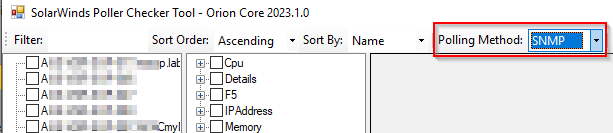
- On the server hosting your main polling engine, navigate to C: > Program Files (x86) > SolarWinds > Orion > PollerCheckerTool.exe (if running version 2022.x and below). If running 2023.x and higher, the file is named Solarwinds.PollerChecker.Gui.exe
- Run the executable.
- Change the Polling Method to SNMP
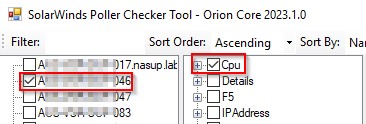
- From the leftmost column, select the target node to check the assigned/supported pollers for and select CPU from the next column:
- Click on Detect Pollers. Supported pollers are highlighted with a light green background and the currently assigned poller is shown with a bright green background and the box in the Assigned column is selected.
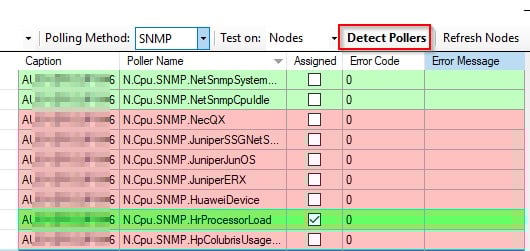
- Now select the N.Cpu.SNMP.CiscoGen1 or N.Cpu.SNMP.CiscoGen3 poller and click Add/Replace Poller.

- Click Yes.
- In the SolarWinds Platform Web Console, go to the node details page. In the Mangement widget, click Poll Now a few times and check the results (Vital Stats subview, CPU Load & Memory Utilization widget).
- If the poller is still not displaying the correct CPU usage, assign another CPU poller and test it again.
- If you do see the correct CPU load reported by the device, you can repeat the steps and replace the CPU poller on affected devices.
2. Replace the CPU poller in bulk
When you have found the appropriate CPU poller, you can run SQL queries and replace the CPU poller in bulk, using the SQL Studio or the SolarWinds Database Manager.
Important Notes:
- Make a backup of your database before you start making any changes.
- Be careful when making changes in the database. The changes may have unintended consequences.
- The example code selects nodes based on Polling Method = SNMP, a Node caption pattern, and the PollerType = CPU enabled.
· · Select * from pollers where netobjectid in (SELECT nodeid FROM nodes where objectsubtype like '%snmp%' and caption like '%nodename pattern%') and (PollerType like '%CPU%' and Enabled=1
When you have identified the right poller for the Cisco devices that were reporting Incorrect CPU usage, adjust the following code and run it:
- In the first query, replace N.Cpu.SNMP.HrProcessorLoad with the incorrectly assigned CPU poller.
- In the second query, replace N.Cpu.SNMP.CiscoGen3 with the correct CPU poller you want to assign to the devices.
- In both queries, replace nodename pattern with a string you want to use to identify the devices with CPU poller issues.
Below query will Disable or Unassign the Poller N.Cpu.SNMP.HrProcessorLoad
UPDATE Pollers SET Enabled =0
WHERE PollerType='N.Cpu.SNMP.HrProcessorLoad' AND NetObjectID in (SELECT nodeid FROM nodes WHERE objectsubtype like '%snmp%' and caption like '%nodename pattern%')
And then assign the supported CPU Poller you found in stepabove
UPDATE Pollers SET Enabled =1 WHERE PollerType='N.Cpu.SNMP.CiscoGen3' AND NetObjectID in (SELECT nodeid FROM nodes WHERE objectsubtype like '%snmp%' and caption like '%nodename pattern%')
Wait for 30 minutes and verify that all the Cisco devices are reporting correct CPU usage.
10. How to login to SolarWinds SWIS API query console via GUI:
These controls are accessible via:
- yourorionaddress/Orion/Admin/swis.aspx
- yourorionaddress/Orion/Admin/swisinvoke.aspx
11. How to login to SolarWinds advanced configuration console via GUI:
https://your_server/orion/admin/advancedconfiguration/global.aspx. (replace your_server with your url or main poller details)