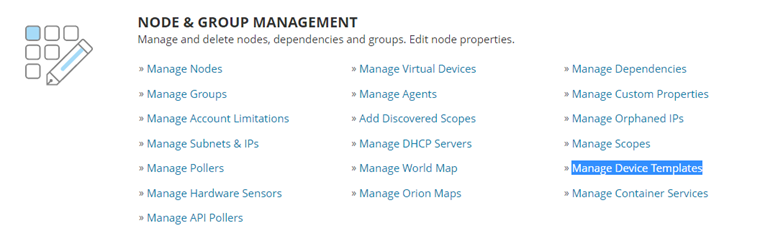
Step 1: Settings > All Settings > Manage Device templates
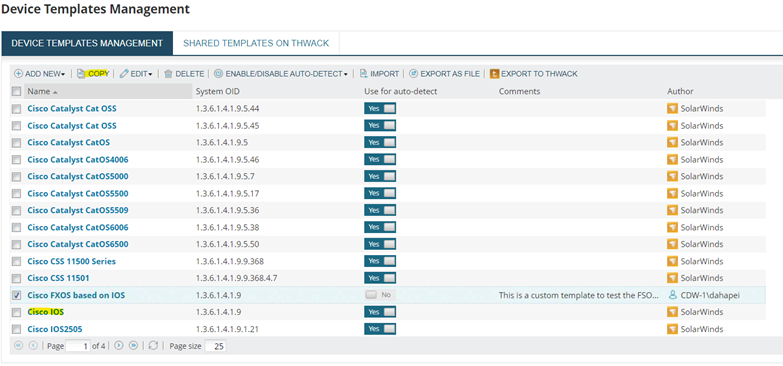
Step 2: Identify the closest device model which can be used as the baseline template
Eg: Cisco FXOS node can be based on the IOS
Click ‘Copy’
Step 3: Enter a proper Template name
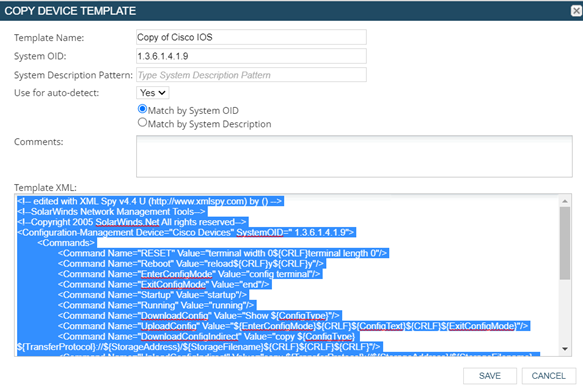
Step 4: Identify the areas on the template to update
Eg: configuration backup commands/ Version check command / save configuration command
IOS template
<!-- edited with XML Spy v4.4 U (http://www.xmlspy.com) by () -->e
<!--SolarWinds Network Management Tools-->
<!--Copyright 2005 SolarWinds.Net All rights reserved-->
<Configuration-Management Device="Cisco Devices" SystemOID=" 1.3.6.1.4.1.9">
<Commands>
<Command Name="RESET" Value="terminal width 0${CRLF}terminal length 0"/>
<Command Name="Reboot" Value="reload${CRLF}y${CRLF}y"/>
<Command Name="EnterConfigMode" Value="config terminal"/>
<Command Name="ExitConfigMode" Value="end"/>
<Command Name="Startup" Value="startup"/>
<Command Name="Running" Value="running"/>
<Command Name="DownloadConfig" Value="Show ${ConfigType}"/>
<Command Name="UploadConfig" Value="${EnterConfigMode}${CRLF}${ConfigText}${CRLF}${ExitConfigMode}"/>
<Command Name="DownloadConfigIndirect" Value="copy ${ConfigType} ${TransferProtocol}://${StorageAddress}/${StorageFilename}${CRLF}${CRLF}${CRLF}"/>
<Command Name="UploadConfigIndirect" Value="copy ${TransferProtocol}://${StorageAddress}/${StorageFilename} ${ConfigType}${CRLF}${CRLF}"/>
<Command Name="DownloadConfigIndirectSCP" Value="copy ${ConfigType} ${TransferProtocol}://${SCPServerUserName}@${SCPStorageAddress}/${StorageFilename}${CRLF}${CRLF}${CRLF}${CRLF}${SCPServerPassword}"/>
<Command Name="UploadConfigIndirectSCP" Value="copy ${TransferProtocol}://${SCPServerUserName}@${SCPStorageAddress}/${StorageFilename} ${ConfigType}${CRLF}${CRLF}${SCPServerPassword}"/>
<Command Name="EraseConfig" Value="write erase${CRLF}Y"/>
<Command Name="SaveConfig" Value="write memory"/>
<Command Name="Version" Value="show version"/>
<Command Name="Disconnect" Value="exit"/>
</Commands>
</Configuration-Management>
In the template, command name is used to identify the command and the value is the actual command
Eg: Downloading running config command will be completed in TWO commands
${ConfigType} is the variable which contains the configuration types configured in the NCM settings > ‘Configs Types’
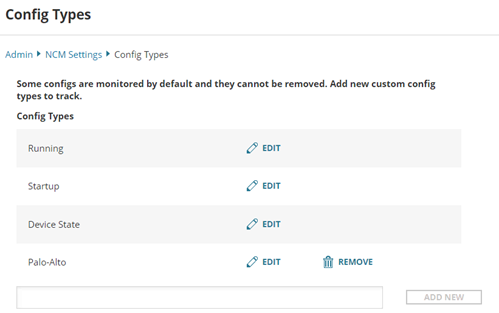
<Command Name="Running" Value="running"/>
<Command Name="DownloadConfig" Value="Show ${ConfigType}"/>
Command
Command | Value |
DownloadConfig | Show + {the value in the config type} |
Running | Running |
Complete command should look like
Download running config > Show Running
On the FXOS downloading the configuration command should be like
Show Configuration
Template snippet
<Command Name="Startup" Value="CONFIGURATION"/>
<Command Name="Running" Value="CONFIGURATION"/>
<Command Name="DownloadConfig" Value="Show ${ConfigType}"/>
Hence, regardless the running or startup configs the command built in the NCM will be
‘Show Configuration’